
Adding, Editing & Deleting Data
The application is consistent. On all of the tables, you can click anywhere on the table to see the details. By default, if you have edit privileges you can edit what you can see.
Adding items
Section titled “Adding items”If you wish to add a new entry, navigate to the appropriate section, e.g. go to requests to add a request, go to areas, to add an area. Once you are in the relevant section, the context sensitive “New Button” will appear near the top right corner, beside the name of your Owners’ Management Company. In this case I am in the “Areas” section, so it offers “Create Area”

This will take you to the “New” page, which will generally look just like the display/edit page. If not we describe things in more detail in the relevant documentation.
Viewing and Editing Items
Section titled “Viewing and Editing Items”Alternately, if you click on any item on the table of data you are looking at it, it will display the existing item. If you have rights to edit that item, then when it is displayed, it will be in edit mode.
Here is an example page
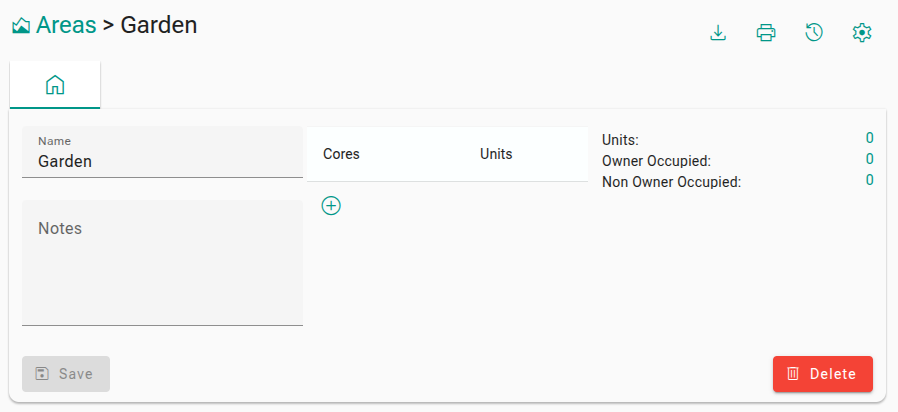
As you can see, the “Save” button is disabled. As soon as you start entering data, you will get the save button will be enabled, and you can save your changes.
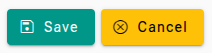
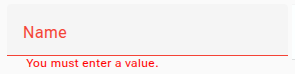
It might be the case, that the item you are editing is not valid, in which case, the save button will not be available and you will see a “Show Errors” button.

If you click on the show errors button, it will highlight any errors that need to be corrected before the item can be save.
Actions & Tabs
Section titled “Actions & Tabs”For a more complex item, there may be additional details. Without going into all of the details, the top of the page that you are viewing might have more details. For example

Page Tabs
Section titled “Page Tabs”The items on the left hand side are “Tabs”, click on those to review further details about this item. Usually you can hover on them, to see text of what is under the tab. Often, there are small yellow bubbles, to give you the hint there is data in there so it is worth clicking in to have a look.
Action Buttons
Section titled “Action Buttons”The circular icons on the right are “Action Buttons”. These are the various actions you can take on the item being displayed. Hover over each item to find out more about what it does. Always feel free to click on them. A dialog will appear that explains more about the action and asks you to confirm the action before anything is updated in the system
Deleting Items
Section titled “Deleting Items”To delete an item, simply click on the delete button and it will be deleted. Proceed with care, as it will not be possible to recover deleted items. Some elements cannot be deleted, in the example above the delete would succeed, as there are no units within the area, if there where units associated to the area, then it would not be possible to delete the area. Such rules are applied throughout the system to ensure the integrity and auditability of the data in the system. In some instances, you may receive a message that delete is not available, if all rules have not been defined.
User Privileges (Role Based Access)
Section titled “User Privileges (Role Based Access)”For full details of user privileges, refer to the relevant section in the documentation, but for now be aware that we have the following roles in the system.
- System Administrator (Has access to everything)
- Owner An owner of a property who does not live in the property
- Owner Occupier An owner of a property who lives in the property
- Resident Someone who lives in, but does not own the property
- Director A Director of an Owners’ Management Company
- Property Manager A user working within a property management agency
- Agent These are the permissions normally granted to a property management employee when they access the Owners’ Management Companies data
- Accountant A person responsible for bookkeeping & accounts functions
Privileges
Section titled “Privileges”For all of these roles, for every page in the system, we can control
- Can they view the list of items
- Can they view the details of an item
- Can they edit an item
- Can they delete an item
- Do they have permissions to execute any special actions
Customisable
Section titled “Customisable”Based on our experience, we provide a default set of privileges that will work for most agencies and Owners’ Management Company however it can all be customised if necessary for any agency or Owners’ Management Company