
Roles
OurOMC uses role-based access control. Every user is assigned a role that determines which pages, records and actions they can access. Each OMC is created with a standard set of roles; you can customise privileges on any role or add new ones to suit your team’s structure.
OMC Default Roles
Section titled “OMC Default Roles”Each OMC is created with the following default roles. Privileges on any role can be adjusted independently — changes to one role do not affect any other.
| Role | Default permissions |
|---|---|
| Resident | View posts, documents and ballots shared with residents; submit and track own service requests |
| Owner | All permissions of Resident role, plus view own unit, budget, schedules and budget codes; access member-only channels |
| Owner Occupier | All permissions of Owner role. The distinction from Owner is that the system does not prompt for a separate contact address as the owner is assumed to live in the unit |
| Letting Agent | All permissions of Owner role, but service charges are still addressed to the owner. The letting agent receives email copies of charges rather than being the named debtor |
| Director | All permissions of Owner role, plus create and edit posts and documents; read-only view of contacts, all financials and debtors/creditors; manage ballots; approve purchase invoices |
| Accountant | All permissions of Director role, plus create journals; open and close accounting periods; run cycle workflows (e.g. year-end). Cannot access service requests or actions |
| Agent (in OMC) | Full operational access within the OMC: complete accounts (read/write), budgeting, service requests, contacts, units, imports, templates, bank reconciliation and billing workflows |
| Admin | Unrestricted access to everything |
Agency Default Roles
Section titled “Agency Default Roles”An agency (property management firm) has its own separate team and role set used when staff are working at the agency level rather than inside a specific OMC.
| Role | Key access |
|---|---|
| Admin | Full access to agency data and all linked OMCs |
| Property Manager | Agency dashboard, manage OMCs, documents, posts, service requests, contacts, units, suppliers, templates; read-only cycles |
| Accounts Manager | Same as Property Manager |
| Maintenance Manager | Service requests, actions, suppliers; no financials |
Agent Access — Automatic Role Mapping
Section titled “Agent Access — Automatic Role Mapping”When an agency creates a new OMC, the system automatically sets up two role mappings between the agency and the OMC:
| Agency role | → | OMC role |
|---|---|---|
| Admin | → | Admin |
| Property Manager | → | Agent |
When an agency staff member navigates into an OMC, the system looks up their agency role and grants them the corresponding OMC role automatically — no manual invitation is needed. The Agent role inside an OMC gives full operational access equivalent to an in-house administrator, but scoped to that OMC only.
List View
Section titled “List View”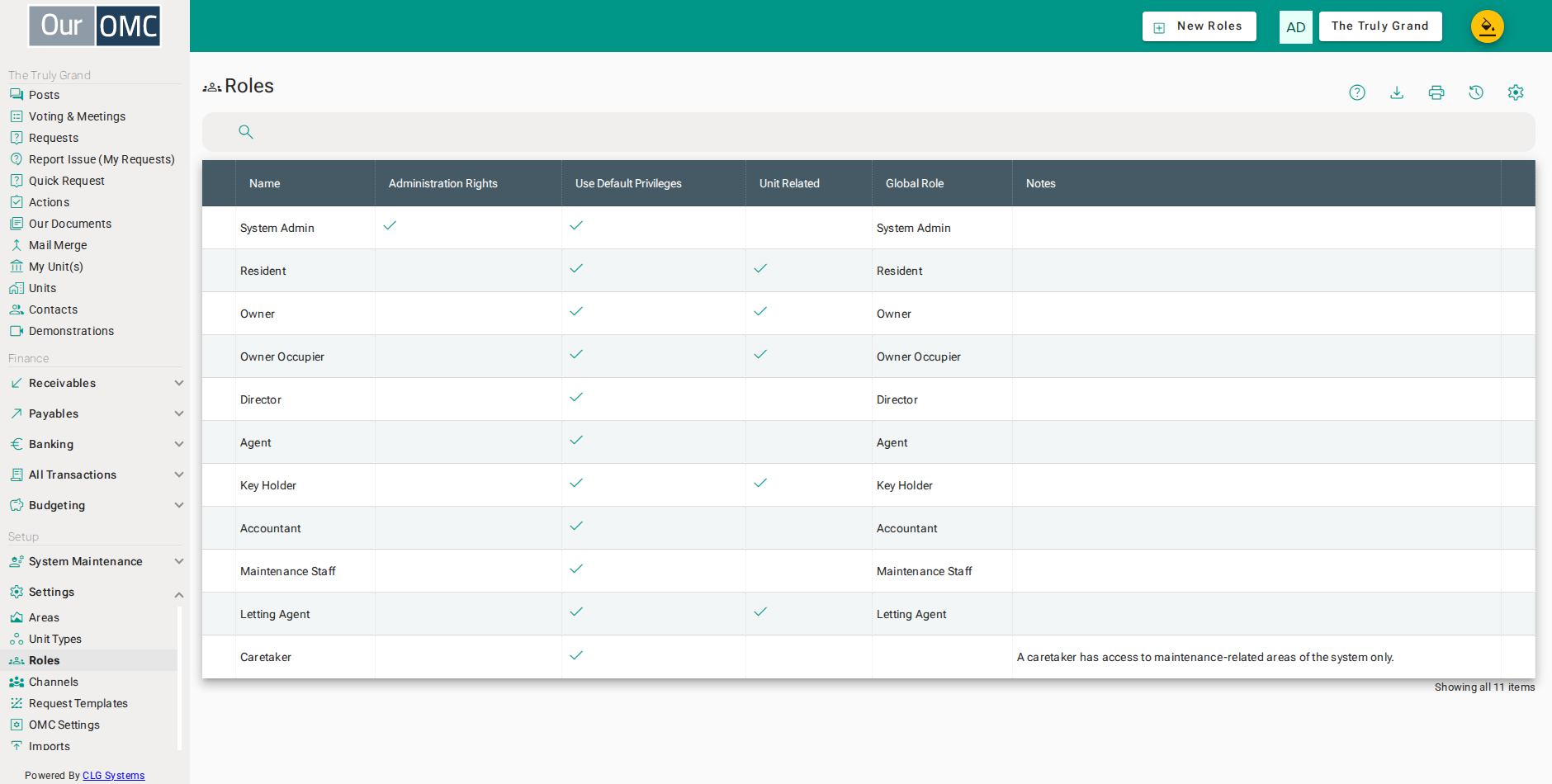
| Column | Type | Description |
|---|---|---|
| Name | text | The name of this role as displayed throughout the system. |
| Administration Rights | boolean | When enabled, this role has full administration rights to manage the OMC's settings and data. |
| Use Default Privileges | boolean | When enabled, this role uses the default access privileges specified for the global role. i.e. the role has not been customised. To customise the role, you will need to turn this flag off as well as setting the default privileges. If you want a role to revert to the default privileges, you can simple turn this flag back on. |
| Unit Related | boolean | Whether this role is associated with a specific unit — Owner and Resident roles are unit-linked, while Director is not. |
| Global Role | picklist | Maps this OMC-level role to a global system role, this controls the default privileges that will be assigned to this role if default privileges is set to true. This field cannot be changed. |
| Notes | longText | Additional notes about this role and its intended use. |
Detail View
Section titled “Detail View”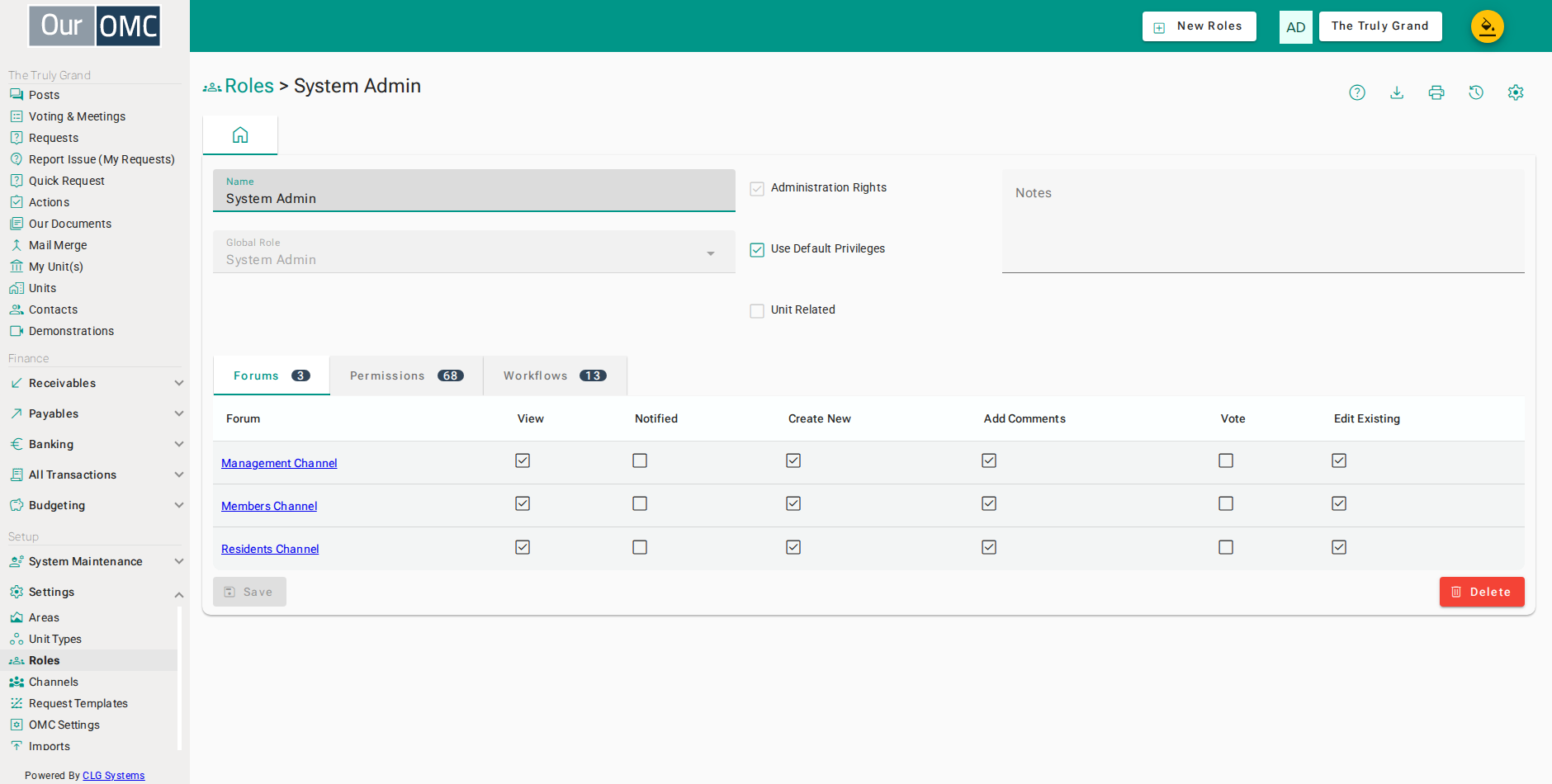
| Field | Type | Description |
|---|---|---|
| Name | text | The name of this role as displayed throughout the system. |
| Administration Rights | boolean | When enabled, this role has full administration rights to manage the OMC's settings and data. |
| Use Default Privileges | boolean | When enabled, this role uses the default access privileges specified for the global role. i.e. the role has not been customised. To customise the role, you will need to turn this flag off as well as setting the default privileges. If you want a role to revert to the default privileges, you can simple turn this flag back on. |
| Unit Related | boolean | Whether this role is associated with a specific unit — Owner and Resident roles are unit-linked, while Director is not. |
| Global Role | picklist | Maps this OMC-level role to a global system role, this controls the default privileges that will be assigned to this role if default privileges is set to true. This field cannot be changed. |
| Notes | longText | Additional notes about this role and its intended use. |
| Forums | grid | This is a readonly list of the channels this role has access to, and the privileges that the role has within those channels. |
| Forum | link | The channel these permissions apply to. |
| View | boolean | Whether this role can view content in this channel. |
| Notified | boolean | Whether this role receives notifications for new content. |
| Create New | boolean | Whether this role can create new content in this channel. |
| Add Comments | boolean | Whether this role can add comments. |
| Vote | boolean | Whether this role can vote in ballots. |
| Edit Existing | boolean | Whether this role can edit existing content. |
| Permissions | grid | Fine-grained data access permissions — controls what data records can be viewed, created, edited or deleted. |
| Name | text | The data object or feature this permission applies to. |
| View Items | boolean | Whether this role can view the list of items. |
| View Items Details | boolean | Whether this role can view individual item details. |
| Create New | boolean | Whether this role can create new items. |
| Edit Existing | boolean | Whether this role can edit existing items. |
| Delete | boolean | Whether this role can delete items. |
| Notes | longText | Notes about this permission setting. |
| Workflows | grid | Workflow action permissions — controls which status transitions and actions this role can trigger. |
| Workflow | text | The workflow this permission applies to. |
| Action | text | The specific action within the workflow. |
| Description | text | A description of what this action does. |
| Permitted | boolean | Whether this role is permitted to trigger this action. |
Examples
Section titled “Examples”Creating a Role
Section titled “Creating a Role”When the default roles do not match your team’s structure, add a new role and define exactly which pages and actions it can access.
- Click [Settings / Roles] on the main menu
- Click on the new button
- Enter a name for the new role
- Add a note describing what this role is for
- Click on the save button
Setting Permissions
Section titled “Setting Permissions”After creating or selecting a role, use the permissions grid to control access at the page and action level — granting or restricting capabilities without affecting any other role.
- Click [Settings / Roles] on the main menu
- Click row where [name] is [Caretaker]
- Switch to the Permissions tab to configure what this role can access
- Click the checkbox to allow Caretakers to see the list of actions
- Click the checkbox to allow Caretakers to open and view action details
- Click the checkbox to allow Caretakers to create new actions
- Click the checkbox to allow Caretakers to update actions — e.g. mark them as done
- Click the checkbox to allow Caretakers to see the basic list of units
- Click on the save button
Deleting a Role
Section titled “Deleting a Role”Remove a role that is no longer needed. A role can only be deleted if no contacts are currently assigned to it.
- Click [Settings / Roles] on the main menu
- Click row where [name] is [Caretaker]
- Click on the delete button
- Click [Delete] on the confirmation dialog