
My Unit
The ‘My Unit’ page gives owners a complete picture of their unit — property details, the contacts registered to the unit, the full service charge account history, and their share of the annual budget. Everything needed to stay on top of their obligations to the OMC is available in one place, without needing to contact the management team.
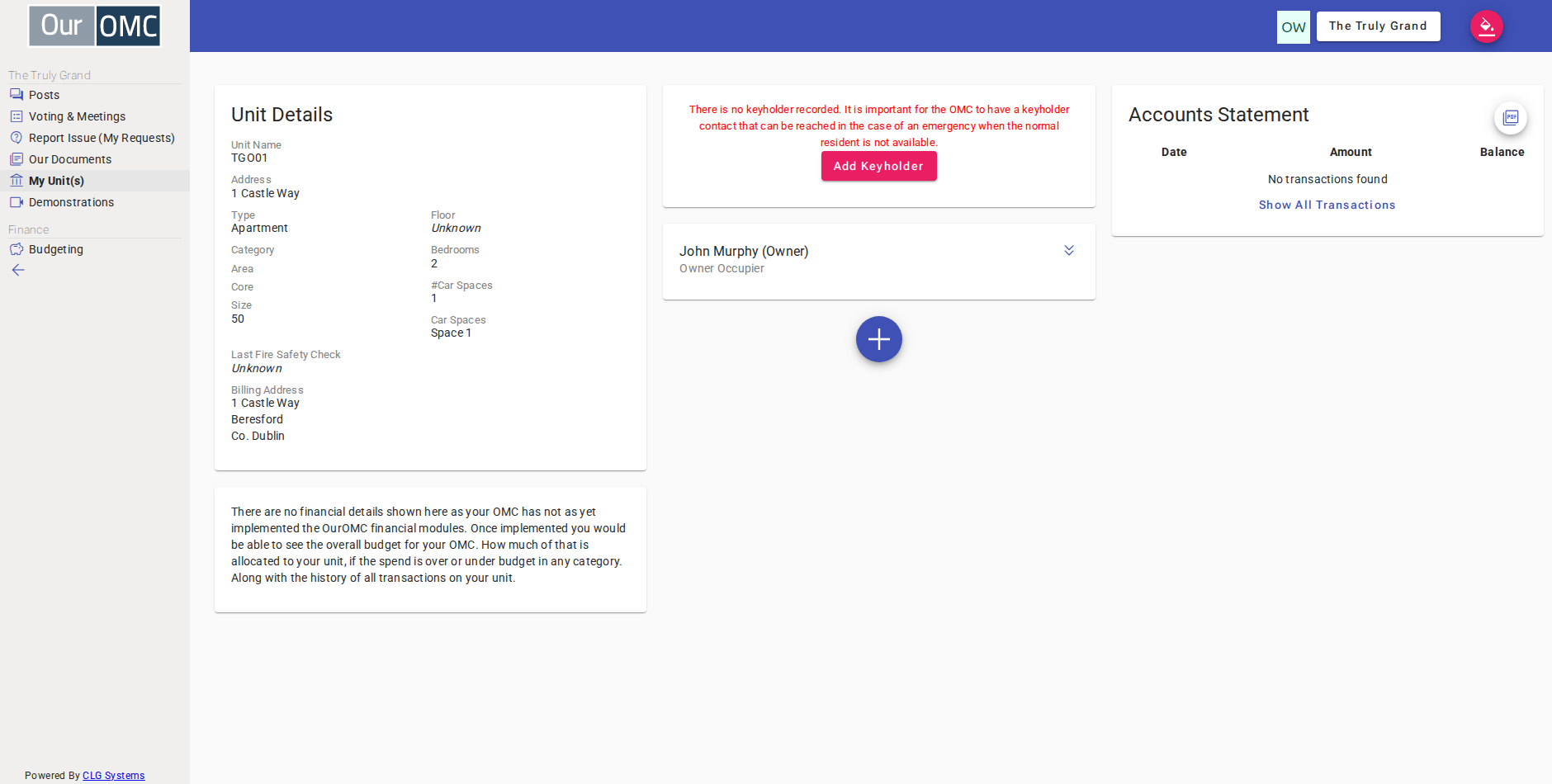
Unit Details
Section titled “Unit Details”Shows the unit name, address, type, category, area, core, size, floor, bedroom count, car spaces, the date of the last fire safety check, and the billing address used for service charge correspondence. If the owner is non-resident, the billing address is taken from their contact record; if they are owner-occupied, it defaults to the unit address.
Contacts
Section titled “Contacts”Lists every contact currently registered to the unit — owners, owner-occupiers, residents, and keyholders. Clicking a contact card expands it to show their full details including phone, email, and address.
Owners can maintain the contacts on their unit directly:
- Add a contact — click the + button at the bottom of the contacts list to register a new resident or keyholder. The contact must give GDPR consent before their details are stored.
- Edit a contact — expand their card and click the edit button to update their phone, email, or address.
- Remove a contact — expand their card and click the delete button (available for non-owner contacts only). The contact immediately loses access to the owner portal.
Accounts Statement
Section titled “Accounts Statement”Shows the current financial position of the unit — service charge invoices, payments received, opening balance, and current balance. By default only the current financial year is shown; click Show All Transactions to see the full history.
A PDF icon on any service charge row opens a downloadable invoice for that charge. The full statement can also be downloaded as a PDF.
Lease Schedule Portions
Section titled “Lease Schedule Portions”Shows the percentage of each budget schedule that is allocated to the unit based on the lease. This determines what share of the annual service charge the unit is responsible for.
Upcoming Proposed Charges
Section titled “Upcoming Proposed Charges”If the OMC has approved a budget for the next billing cycle, this section shows the total budget for the development, and the expected charge to this unit based on its lease portion.
Examples
Section titled “Examples”Viewing Your Unit
Section titled “Viewing Your Unit”See the full picture for your unit — property details, contacts, account statement, and lease schedule portions — in one place.
- Click [My Unit(s)] on the main menu
- The owner can see their unit — name, address, type, area, floor, bedrooms, and car spaces are all shown
- The Accounts Statement shows the current year transactions and outstanding balance — the owner can see exactly what is owed
- Click Show All Transactions to see the full transaction history beyond the current financial year
- Click the PDF icon on a service charge row to get a printable copy of the invoice
- Confirm to download the invoice — a PDF copy of the service charge will be saved
- Click [OK] on the confirmation dialog
Adding a Contact
Section titled “Adding a Contact”Register a new resident or keyholder to your unit so they gain access to the portal and their details are on file for the OMC.
- Click [My Unit(s)] on the main menu
- Click the + button to add a new contact to the unit — residents, keyholders and other linked contacts can be added
- Select the role for this contact — Resident, Keyholder, or other unit-linked roles can be assigned
- Enter the contact's first name
- Enter the contact's last name — this is required
- Enter the contact's phone number
- Enter the contact's email address so they can register for the owner portal
- Check the consent box to confirm that the person has given permission for their details to be stored by the OMC
- Save the new contact — they will be added to the unit and can now be invited to register
Editing a Contact
Section titled “Editing a Contact”Update the phone, email, or address details of a contact registered to your unit.
- Click [My Unit(s)] on the main menu
- Click the contact card to expand it and see their full details
- Click the edit button to update the contact's details
- Update the phone number to the new value
- Save the updated contact details
Removing a Contact
Section titled “Removing a Contact”Remove a resident or keyholder from your unit when they no longer live there. They immediately lose access to the portal.
- Click [My Unit(s)] on the main menu
- Click the contact card to expand it and see their full details
- Click the delete button to remove this contact from the unit
- Confirm removing this contact from the unit