
Documents
Documents are wiki-style pages the OMC publishes to a channel — house rules, certificates, meeting minutes, insurance and planning records. This page covers how a manager creates and organises documents. For how they appear to the people reading them, see the owner and resident view of documents.
A document page has typed content and can also carry attached files, and pages can be nested into a hierarchy — a parent page used as a folder with child pages and files beneath it.
Documents use the same visibility model as posts: the channel decides who can see a page, and the optional target area, core, type and category filters narrow it further — leave them blank and the page is visible to everyone in the channel.
List View
Section titled “List View”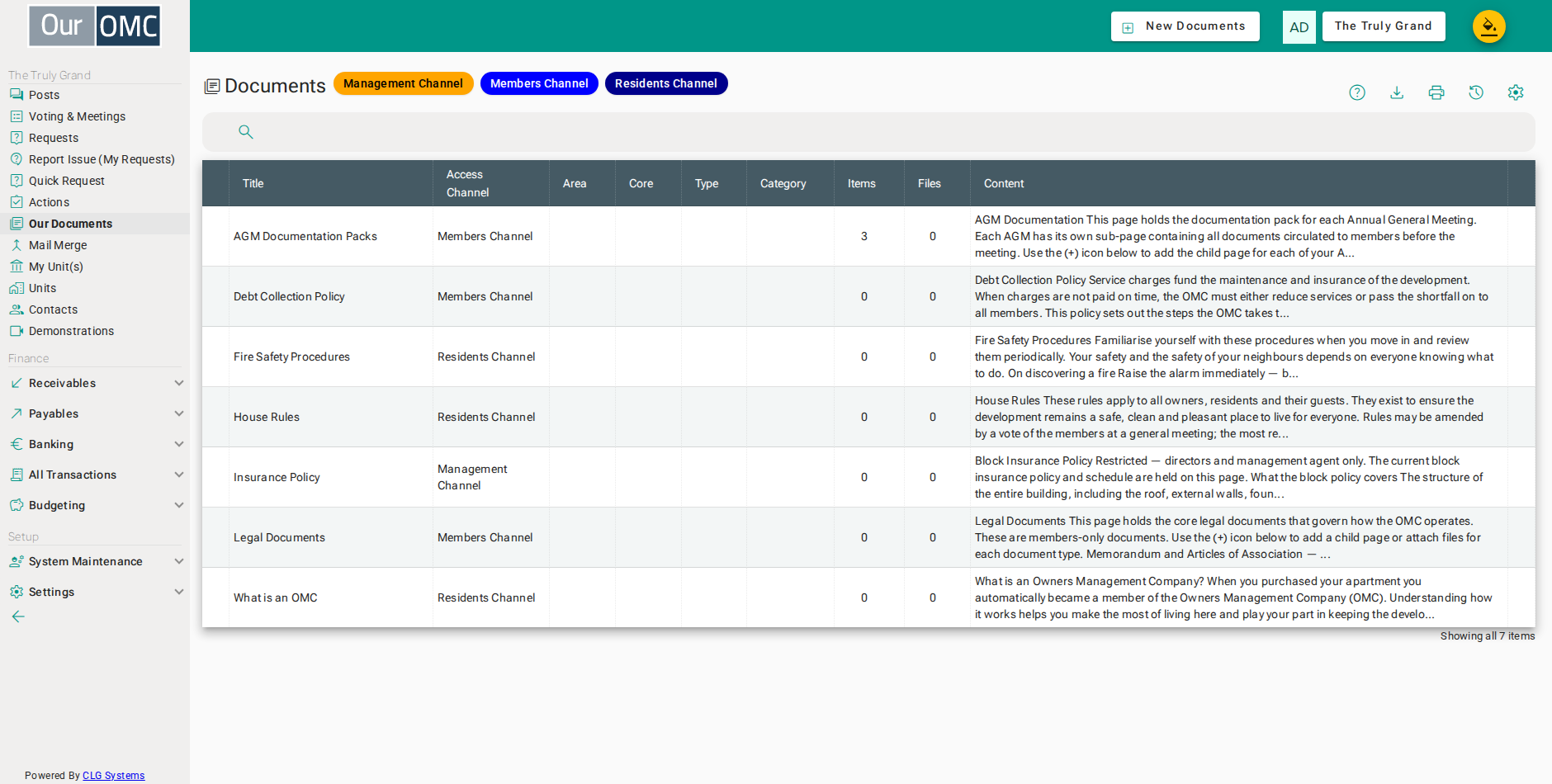
| Column | Type | Description |
|---|---|---|
| Title | text | The title or name of this document. |
| Access Channel | picklist | Which channel members need access to in order to view this document. |
| Area | text | Restrict this document to members within a specific area of the development. |
| Core | text | Restrict this document to members within a specific core or stairwell. |
| Type | text | Restrict this document to members with a specific unit type. |
| Category | text | Restrict this document to members with a specific unit category. |
| Items | number | Number of sub-documents or items nested within this document. |
| Files | number | Number of files attached to this document. |
| Content | richText | The rich text body of this document, visible to members who have channel access. |
Detail View
Section titled “Detail View”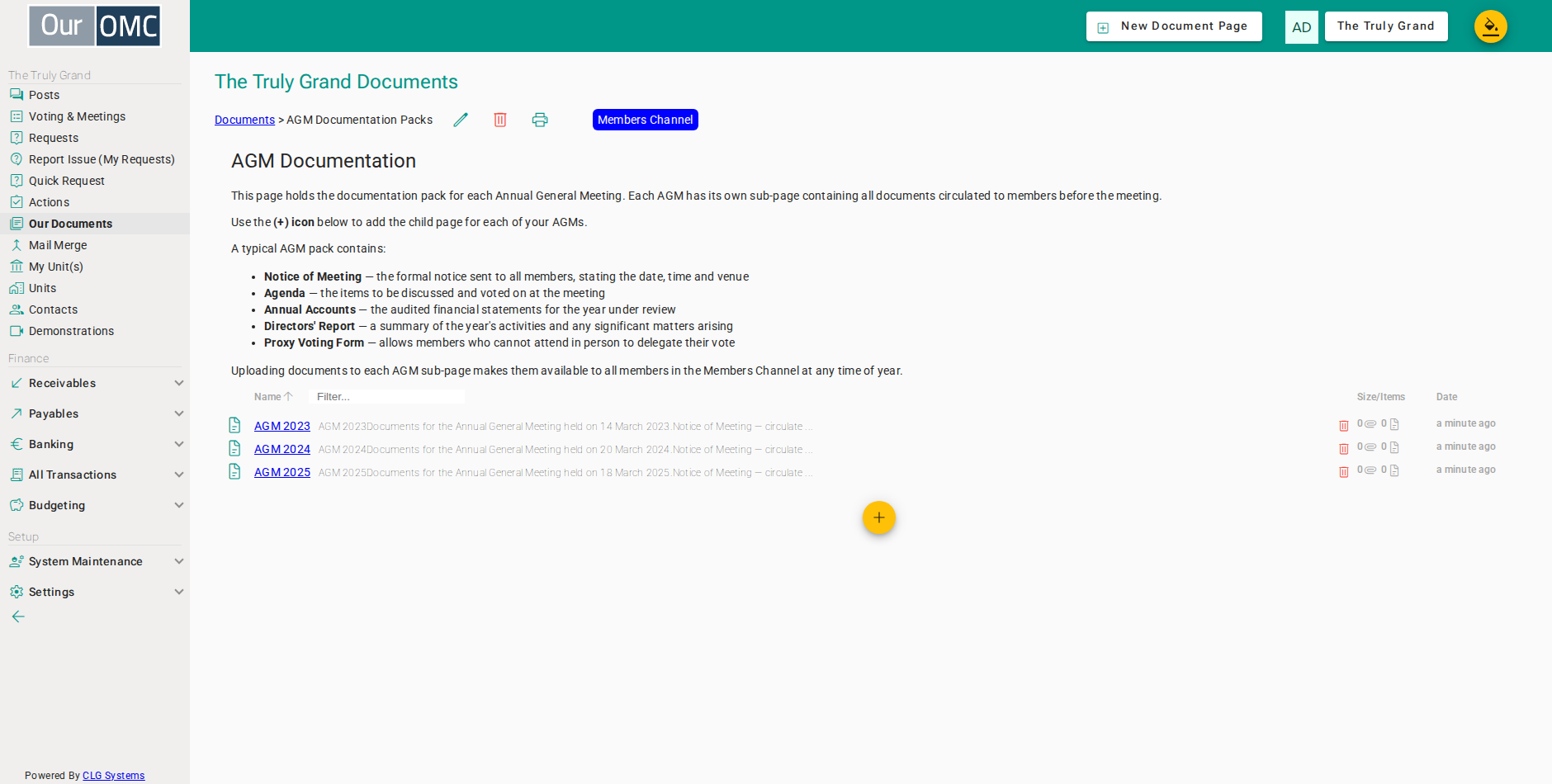
| Field | Type | Description |
|---|---|---|
| Title | text | The title or name of this document. |
| Access Channel | picklist | Which channel members need access to in order to view this document. |
| Area | text | Restrict this document to members within a specific area of the development. |
| Core | text | Restrict this document to members within a specific core or stairwell. |
| Type | text | Restrict this document to members with a specific unit type. |
| Category | text | Restrict this document to members with a specific unit category. |
| Items | number | Number of sub-documents or items nested within this document. |
| Files | number | Number of files attached to this document. |
| Content | richText | The rich text body of this document, visible to members who have channel access. |
Examples
Section titled “Examples”Creating a document page
Section titled “Creating a document page”Add a new document page with a title, description and channel, and type the content directly onto the page.
- Click [Our Documents] on the main menu
- Click on the new button
- Enter the page title: Community Guidelines
- Select Residents Channel — this page will be visible to all owners and residents
- Type the content directly onto the page
- Click on the save button
Adding a child page
Section titled “Adding a child page”Build a folder-style hierarchy by adding a child page beneath an existing one. The child inherits the parent’s channel and can hold its own content, files and further child pages.
- Click [Our Documents] on the main menu
- Click row where [title] is [Community Guidelines]
- Open the add menu on the document page
- Choose Add New Page to create a child page beneath this one
- Enter the child page title: House Rules — Parking
- Type the content for the child page
- Click on the save button
Attaching a file
Section titled “Attaching a file”Attach a file — such as a certificate or signed form — to a document page. Prefer typed content for anything people need to read; reserve attachments for documents that only exist as files.
- Click [Our Documents] on the main menu
- Click row where [title] is [Community Guidelines]
- Open the add menu and choose Attach File
- Choose Attach File to add a file to this page
Editing a document page
Section titled “Editing a document page”Update an existing document’s title, content or channel.
- Click [Our Documents] on the main menu
- Click row where [title] is [Community Guidelines]
- Click the edit icon to open the page editor
- Replace the document content with the updated text
- Click on the save button
Deleting a document page
Section titled “Deleting a document page”Remove a document that is no longer relevant. A page can only be deleted once its files and child pages have been moved elsewhere.
- Click [Our Documents] on the main menu
- Click on the new button
- Enter the page title: Temporary Notice
- Select Residents Channel
- Type some placeholder content
- Click on the save button
- Click the delete icon to remove the page
- Click [OK] on the confirmation dialog