
Billing
Billing runs generate service charge invoices for all units in a billing period. A billing run calculates each unit’s share of the budget based on its lease schedule allocation, creates individual invoices, and optionally emails them to unit owners.
Each billing run can be previewed before posting to check amounts are correct. The Billout action posts the invoices to the ledger, and Mail Charges sends the invoice PDFs to unit owners by email. Once billed, the individual invoice records can be found in the Service Charges section.
List View
Section titled “List View”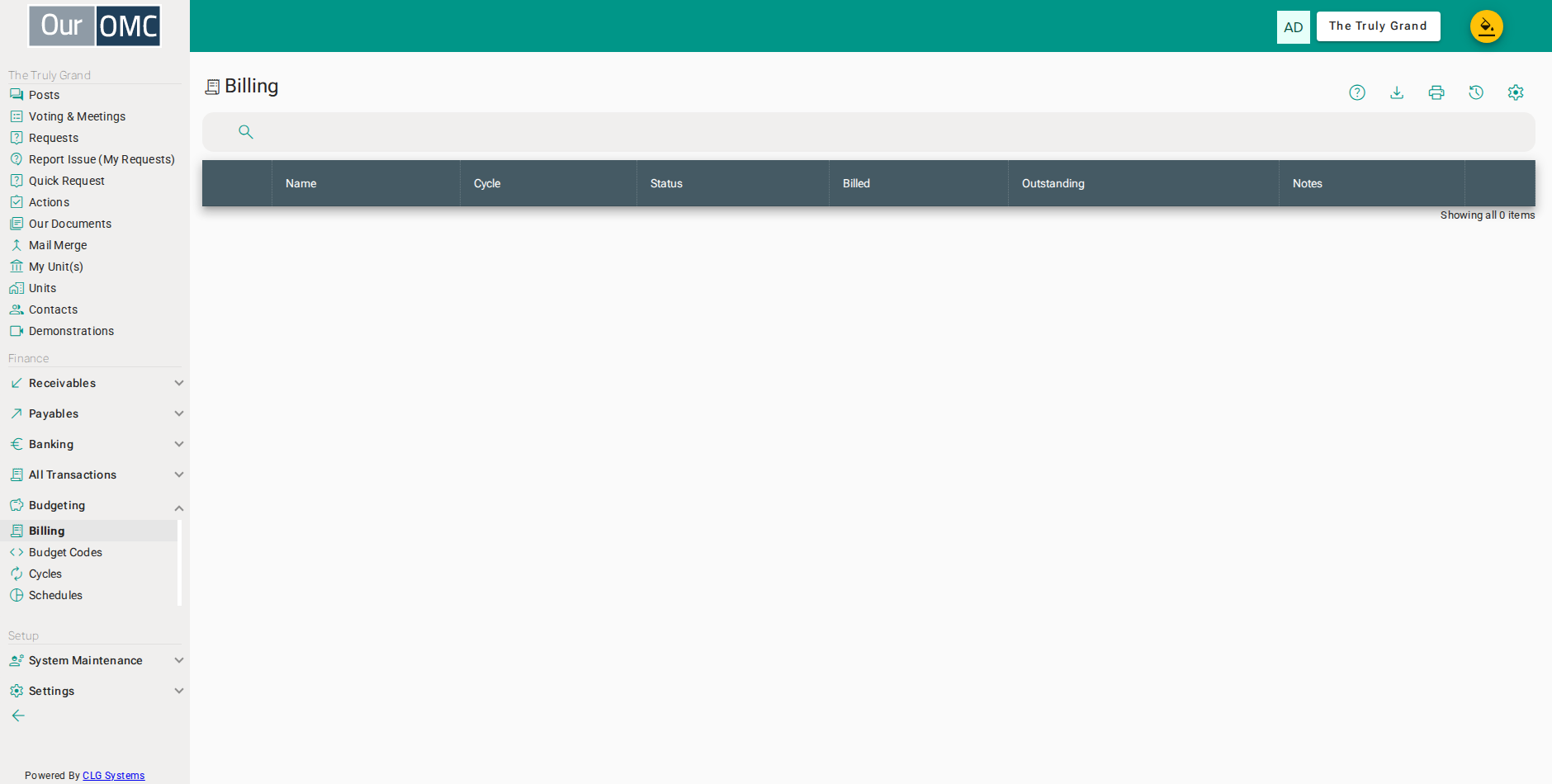
| Column | Type | Description |
|---|---|---|
| Name | text | The name of this billing run, typically identifying the schedule or cycle it relates to. |
| Cycle | picklist | The budget cycle (financial year) this billing run belongs to. |
| Status | picklist | The current stage of this billing run — Editing (being prepared), Proposed, Accepted, Billing (invoices being generated), or Billed (all invoices raised). |
| Billed | link | The total amount invoiced to unit owners in this billing run — click to view the individual invoices. |
| Outstanding | link | The total amount still outstanding and unpaid from this billing run — click to view the outstanding invoices. |
| Notes | longText | Internal notes about this billing run. |
Detail View
Section titled “Detail View”
| Field | Type | Description |
|---|---|---|
| Name | text | The name of this billing run, typically identifying the schedule or cycle it relates to. |
| Cycle | picklist | The budget cycle (financial year) this billing run belongs to. |
| Status | picklist | The current stage of this billing run — Editing (being prepared), Proposed, Accepted, Billing (invoices being generated), or Billed (all invoices raised). |
| Billed | link | The total amount invoiced to unit owners in this billing run — click to view the individual invoices. |
| Outstanding | link | The total amount still outstanding and unpaid from this billing run — click to view the outstanding invoices. |
| Notes | longText | Internal notes about this billing run. |
Available Actions
Section titled “Available Actions”Related Tabs
Section titled “Related Tabs”Sending Charges & Reminders to Owners
Section titled “Sending Charges & Reminders to Owners”From a completed billing, use the add button on the Communications card to send the charges to the owners.
If you wish to send physical copies of the charges, you can choose the destination as PDF, which will produce a PDF file that you can print and manually send. If you choose email as the destination, the mails will be sent directly to owners who have an email address. Any unit, which has no owners with an email address, will automatically have a PDF copy of the charge produced for you to mail manually.
Enter a name for this commnuication, which if sending by email becomes the subject for the emails sent.
Note that this function is used to initially send the charges when they are issued but can also be used to send reminders. The sending can be filtered by the amount outstanding on the charges. It would be quite standard to use this function repeatedly, first to issue the charge, and then again to issue first, second and third reminders. It is recommended that you have standard templates for charges issued and each type of reminder.
When sending charges, a PDF copy of the charge will be attached. Also if there is any additional monies outstanding for the unit, a short statement of outstanding items is also automatically attached.
- Click [Budgeting / Billing] on the main menu
- Open the most recently imported billing
- Click the add button to send these charges to unit owners
- Enter a unique name for this mailing
- Choose to send by email
- Choose the Detailed Invoice Notice template, which already has every available placeholder filled in
- Click Submit to save this mailing
- Confirm generating the emails now, for real