
Units
Units are the physical properties that make up your OMC — the residential or commercial units.
Each unit can have multiple contacts (people or organisations) associated to it — multiple owners, residents and letting agents are all tracked in the system, and can all be communicated with.
Each unit has its own service charge account and is reponsible to pay it’s allocated a share of the annual budget. The portion it is responsible for will be determined through the lease schedule.
A full financial history of charges raised and payments received is tracked against the unit.
Units can be classified by type/category for communications and to allocate the portion of the budget it will be responsible for.
Units can be further classified by area/core to allow you to communicate with different areas and sub areas within the OMC.
One unit can have many contacts associated with it; likewise, a single contact may own multiple units.
Units are one of the core concepts that makes OMC accounting different from a standard bookkeeping system. Service charges attach to the unit, not just the owner. When ownership transfers, solicitors confirm there are no outstanding charges, because if there are the outstanding balance stays with the unit and the new owner becomes responsible for the debt.
List View
Section titled “List View”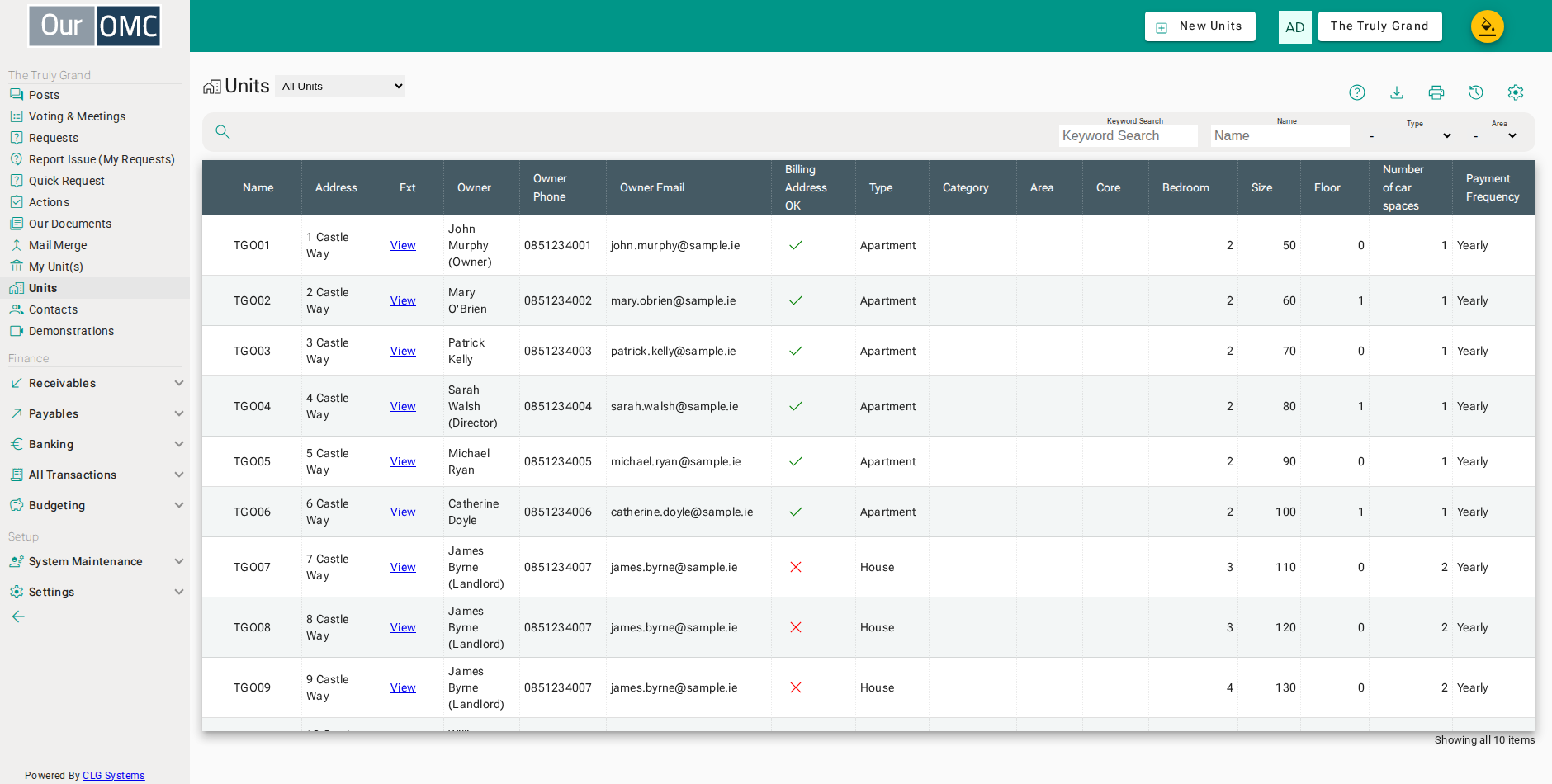
| View | Shows |
|---|---|
| All Units | All units in the development |
| Missing Owner Details | Units where owner contact details are missing |
| Column | Type | Description |
|---|---|---|
| Name | text | Unique name for the unit. Note, by default units are sorted by name, so use a name that sorts nicely. E.g. APT01, APT02 etc, is better to avoid APT1 sorting before APT10 in lists. |
| Address | text | This is the first line of the address. The remainder of the address will be added automatically from the OMC settings |
| Ext | link | This is a link to allow property managers and directors to view the unit as the owner will see it if they log in. |
| Owner | phone | Readonly - The name of the primary owner for this unit |
| Owner Phone | phone | Readonly - The primary owners phone number |
| Owner Email | phone | Readonly - The primary owners email |
| Billing Address OK | icon | Highlights if we have a billing address. If primary owner is an owner occupier or an owner with a billing address, we get a green check mark. If the primary owner does not live in the unit, and we do not have a mailing address, gets a red X to highlight the missing billing address |
| Type | picklist | The unit type (Apartment, House, Commercial) - See Unit Types for more info |
| Category | picklist | A sub-division of type, e.g. 2 Bed, Studio, 3 Bed etc. |
| Area | picklist | The area within the development this unit belongs to, e.g. street names or block names. See Areas for more info |
| Core | picklist | A sub-division of area, allowing further grouping within an area e.g. individual blocks within a street, or lift cores within an apartment block |
| Bedroom | number | Number of bedrooms in the unit. |
| Size | number | Floor area of the unit in square metres. |
| Floor | number | Which floor of the building the unit is on. 0 = ground floor, 1 = first floor above ground, etc. |
| Number of car spaces | number | How many car spaces are associated with this unit. Can be used to apportion schedules. |
| Payment Frequency | picklist | How often the unit owner makes payments — annually or monthly. |
| Arrears Stage | picklist | Where in the debt collection process this unit currently sits. |
| Fire Safety Checked | date | Date of the last fire safety inspection for this unit. |
| Car Space(s) | text | The name(s) of the car space(s) owned by this unit. |
Detail View
Section titled “Detail View”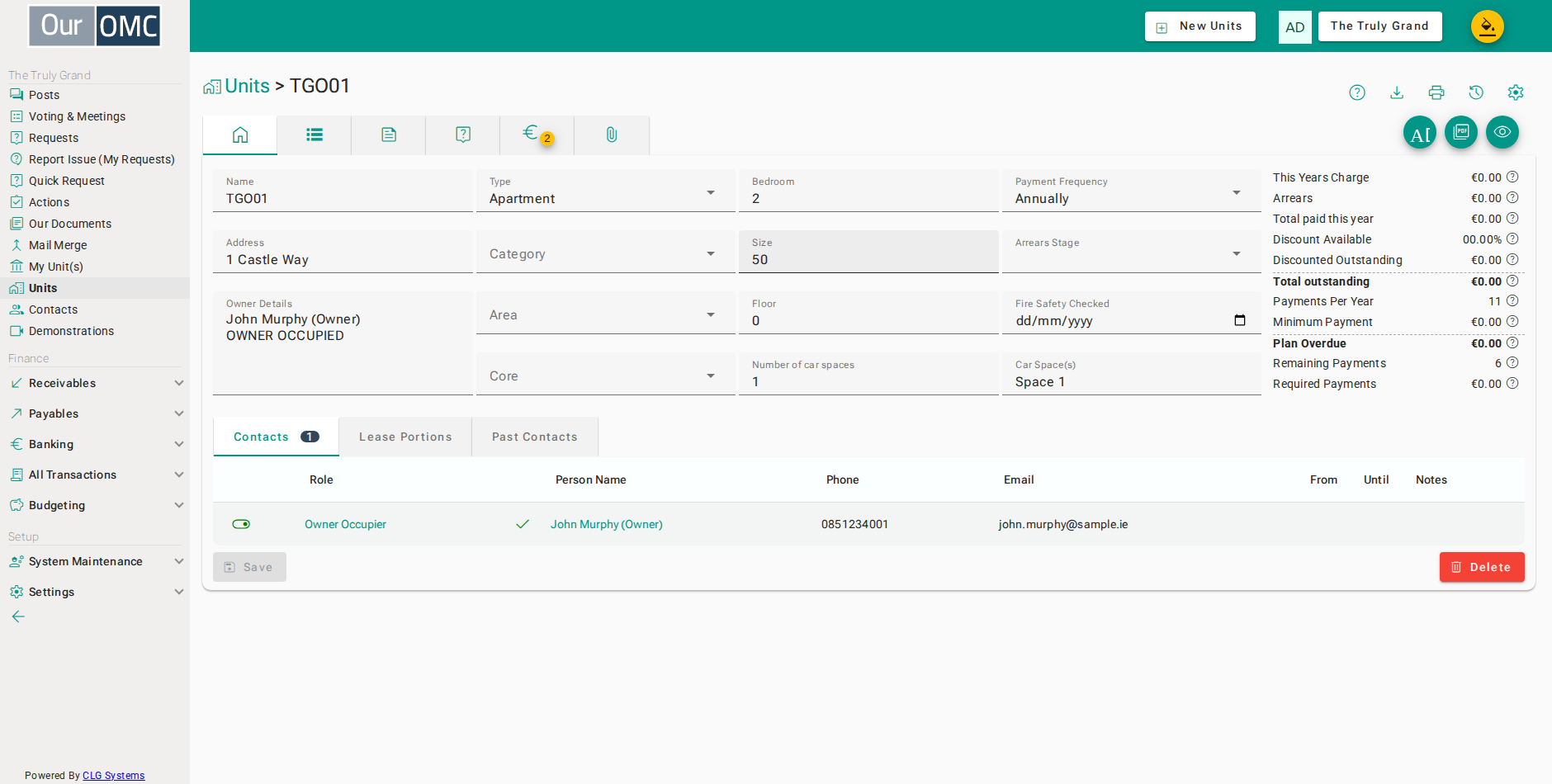
| Field | Type | Description |
|---|---|---|
| Name | text | Unique name for the unit. Note, by default units are sorted by name, so use a name that sorts nicely. E.g. APT01, APT02 etc, is better to avoid APT1 sorting before APT10 in lists. |
| Address | text | This is the first line of the address. The remainder of the address will be added automatically from the OMC settings |
| Owner Details | longText | Readonly - The name and billing address for the primary owner |
| Type | picklist | The unit type (Apartment, House, Commercial) - See Unit Types for more info |
| Category | picklist | A sub-division of type, e.g. 2 Bed, Studio, 3 Bed etc. |
| Area | picklist | The area within the development this unit belongs to, e.g. street names or block names. See Areas for more info |
| Core | picklist | A sub-division of area, allowing further grouping within an area e.g. individual blocks within a street, or lift cores within an apartment block |
| Bedroom | number | Number of bedrooms in the unit. |
| Size | number | Floor area of the unit in square metres. |
| Floor | number | Which floor of the building the unit is on. 0 = ground floor, 1 = first floor above ground, etc. |
| Number of car spaces | number | How many car spaces are associated with this unit. Can be used to apportion schedules. |
| Payment Frequency | picklist | How often the unit owner makes payments — annually or monthly. |
| Arrears Stage | picklist | Where in the debt collection process this unit currently sits. |
| Fire Safety Checked | date | Date of the last fire safety inspection for this unit. |
| Car Space(s) | text | The name(s) of the car space(s) owned by this unit. |
| This Years Charge | number | Total service charge levied on this unit in the current financial year. |
| Arrears | number | Amounts owing on charges issued prior to the current financial year. |
| Total paid this year | number | Total paid by the unit owner in the current financial year. |
| Discount Available | number | Percentage discount available for making full payment promptly. |
| Discounted Outstanding | number | Total amount outstanding, adjusted to allow for the available prompt payment discount. |
| Total outstanding | number | Total amount outstanding across all years. |
| Payments Per Year | number | Maximum number of payments accepted in the financial year. |
| Minimum Payment | number | The monthly payment amount based on making the maximum number of payments in the year. Any standing order being set up must be greater than this amount, otherwise the unit will be falling into arrears. |
| Plan Overdue | number | How much is overdue based on today's date, assuming monthly payments had been made. The owner would need to make this payment now and set up a standing order for the regular monthly payment amount. |
| Remaining Payments | number | Number of payment periods remaining in the current calendar year. |
| Required Payments | number | Amount of standing order required to clear all outstanding charges by the end of the year. |
| Contacts | grid | Contacts who are currently associated with this unit. |
| Role | link | Is this person an Owner Occupier, an Owner (aka Landlord), Resident or Keyholder |
| statusField | icon | Checked to show this person is currently active, i.e. they are not a past or future member |
| Person Name | link | The full name of the contact |
| Phone | text | The contact's phone number |
| text | The contact's email address | |
| From | date | Date this contact became associated with this unit (purchase date for owners, move-in date for residents) |
| Until | date | Date this contact ceased being associated with this unit (sale date for owners, move-out date for residents) |
| Notes | longText | Useful notes about this contact in this unit |
| Lease Portions | grid | The lease schedules this unit is a part of, and the portion allocated to this unit within each schedule. |
| Schedule | link | The name of the lease schedule |
| Portion | number | The portion allocated to this unit within the schedule. A schedule can have any number of portions across all units. |
| Percent | number | The percentage of the schedule budget attributable to this unit, calculated as this unit's portion divided by the total portions in the OMC |
| text | ||
| Past Contacts | grid | Previous owners and residents of this unit. |
| Role | link | Is this person an Owner Occupier, an Owner (aka Landlord), Resident or Keyholder |
| statusField | icon | Checked to show this person is currently active, i.e. they are not a past or future member |
| Person Name | link | The full name of the contact |
| Phone | text | The contact's phone number |
| text | The contact's email address | |
| From | date | Date this contact became associated with this unit (purchase date for owners, move-in date for residents) |
| Until | date | Date this contact ceased being associated with this unit (sale date for owners, move-out date for residents) |
| Notes | longText | Useful notes about this contact in this unit |
Available Actions
Section titled “Available Actions”| Action | Description |
|---|---|
Add | Add to this unit |
| Create Request | Create a new service request related to this unit |
| Add Reminder | Log an action as a reminder to do something in the future related to this unit |
| Log Completed Action | Log an action that has already been completed against this unit |
| Add Note | Click to add note visible to agency staff |
| Add Contact | Associate additional contacts to this unit |
| Transfer Unit Ownership | Formally record the transfer of this unit to new owners |
Print PDF Statement | Print a PDF statement of all transactions. You can produce the statement just for this unit, or for all units belonging to the same owner. |
External View of this unit | Look at this unit displayed as it would be to the owner if they login to the system to view their unit details. |
Related Tabs
Section titled “Related Tabs”| Main | Shows the main form fields as described above | |
| Actions | Tasks and action items associated with this unit, such as maintenance follow-ups or owner correspondence. | |
| Notes | Internal notes and messages logged against this unit, visible to agency staff only. | |
| Requests | Service requests raised by or on behalf of this unit, such as maintenance issues or queries. | |
| Transactions | Full transaction history for this unit, including service charges raised, payments received and any adjustments. | |
| Attached Files | Files and documents attached to this unit, such as lease agreements, correspondence or inspection reports. |
Actions
Tasks and action items associated with this unit, such as maintenance follow-ups or owner correspondence.
Notes
Internal notes and messages logged against this unit, visible to agency staff only.
Requests
Service requests raised by or on behalf of this unit, such as maintenance issues or queries.
| Field | Type | Description |
|---|---|---|
| Ref | link | Unique reference number for the service request |
| Title | text | Short summary of the service request |
| Description | longText | Full details of the issue or query being raised |
| Status | picklist | Current status of the request — Open, Resolved or Accepted |
| Created | dateTime | Date and time the request was originally submitted |
| Last Updated | dateTime | Date and time the request was last updated |
Transactions
Full transaction history for this unit, including service charges raised, payments received and any adjustments.
| Field | Type | Description |
|---|---|---|
| Ref | link | Unique reference number for the transaction — click to view full details |
| Type | picklist | The type of transaction, e.g. Service Charge, Payment, Credit Note, Bank Receipt |
| Date | date | The date the transaction was posted |
| Debit | number | Amount charged to the unit on this transaction |
| Credit | number | Amount credited to the unit on this transaction (e.g. a payment received) |
| Outstanding | number | Amount remaining unpaid on this specific transaction |
| Running Balance | number | Running balance on the unit account after this transaction has been applied |
| Notes | longText | Any notes recorded against this transaction |
| Matched | icon | Indicates this transaction is linked to a previous owner of the unit and will not be visible to the current owner if they login to the system |
Attached Files
Files and documents attached to this unit, such as lease agreements, correspondence or inspection reports.
Examples
Section titled “Examples”Creating a Unit
Section titled “Creating a Unit”Add a new unit to the OMC, setting the name, type, category, area, and lease details.
- Click [Units] on the main menu
- Click on the new button
- Enter the unit name — this is how it will appear throughout the system
- Enter the unit's street address
- Click on the save button
Adding a Contact to a Unit
Section titled “Adding a Contact to a Unit”Link an owner, resident, or letting agent to an existing unit so they appear on the contacts list and gain the access rights their role provides.
- Click [Units] on the main menu
- Open the unit to add the owner's contact details
- Open the [Add] action menu
- Choose Add Contact to associate an owner with this unit
- Select Individual to create a new person record for the owner
- Enter the owner's first name
- Enter the owner's last name
- Enter the owner's phone number
- Enter the owner's email — used for statements and portal access
- Enter the date the owner became associated with the unit
- Select the role — Owner Occupier is typical for an owner who lives in the unit
- Click Add Contact(s) to link the owner to the unit
- Confirm to add the contact — the owner is now linked and appears on the Contacts tab
Editing a Unit
Section titled “Editing a Unit”Update the details of an existing unit — name, type, floor, size, or billing address.
- Click [Units] on the main menu
- Open the unit to update its details
- Update the address — ensure it is accurate for postal correspondence
- Click on the save button
Printing a Statement
Section titled “Printing a Statement”Generate a PDF service charge statement for a unit and download or share it with the owner.
- Click [Units] on the main menu
- Open the unit to print its account statement
- Click Print PDF Statement to generate a printable version of the account
- Choose to print the statement for this unit only
External View
Section titled “External View”Open the owner-portal view of a unit to see exactly what the owner sees — useful for supporting them when they report confusion about their account.
- Click [Units] on the main menu
- Open the unit to view it as the owner sees it
- Click External View to see this unit exactly as the owner sees it in the portal
- You can view the 'My Unit' page exactly as it would be presented to the owner(s) of the unit
Transferring Ownership
Section titled “Transferring Ownership”When a unit changes hands, use Transfer Ownership to close the previous owner’s link, record the new owner’s details, and carry any outstanding balance forward to the new owner.
- Click [Units] on the main menu
- Open the unit to transfer ownership
- Open the [Add] action menu
- Choose Transfer Unit Ownership to formally record the change of owner
- Select Individual to create a record for the incoming owner
- Enter the new owner's first name
- Enter the new owner's last name
- Enter the new owner's phone number
- Enter the new owner's email so they can register for the portal
- Select the role for the new owner
- Enter the transfer date — the system calculates the outstanding balance on this date
- The outstanding balance at the transfer date is shown — if non-zero, a credit note and balance-forward charge are created automatically on confirmation
- Click Transfer Ownership to record the change of owner
- Confirm the transfer — the system creates the balance-forward entry and updates ownership
- The new owner is now the active contact on the unit
- Click to Open Past Contacts Tab
- The previous owner now appears on Past Contacts — their records are preserved but they are no longer the active owner
- Click to Open Transactions Tab
- Transactions before the transfer date show a warning triangle, indicating they are hidden from the new owner on statements and in the portal
Adding an Owner to a Second Unit
Section titled “Adding an Owner to a Second Unit”Where a contact owns more than one unit in the development, link their existing contact record to the additional unit rather than creating a duplicate contact.
- Click [Units] on the main menu
- Open the second unit to add the same owner
- Open the [Add] action menu
- Choose Add Contact
- Select Choose Existing Contact to find Maeve Ryan without creating a duplicate record
- Search for and select Maeve Ryan — she was created during the ownership transfer
- Select Ryan from the contact search results
- Select the role for Maeve on this unit
- Enter the date the owner became associated with the unit
- Click Add Contact(s) to link Maeve to Garden Flat
- Confirm to add Maeve as owner of Garden Flat — she is now linked to two units from one contact record
Deleting a Unit
Section titled “Deleting a Unit”Remove a unit that was created in error. Deletion is blocked if the unit has any financial history — charges, payments, or outstanding balances.
- Click [Units] on the main menu
- Click on the new button
- Create a temporary unit — it has no transactions so it can be deleted
- Click on the save button
- Click on the delete button
- You would click [Delete] on the confirmation dialog