
Logging In
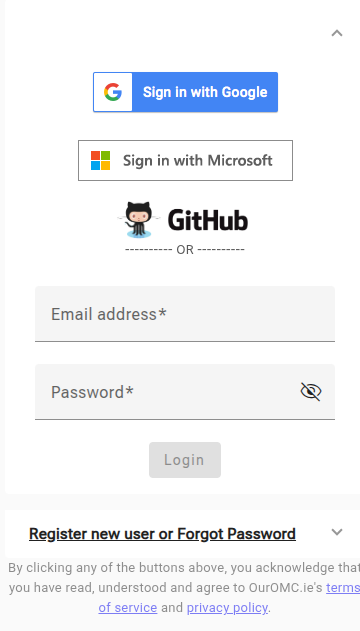
Login with Google/Microsoft
Section titled “Login with Google/Microsoft”Far and away the best way for you to connect to the system is simply to click on the “Sign in with Google” or “Sign in with Microsoft” option. This is far more secure. The only information you are sharing is :-
- Your email address - You cannot access the system without an email address anyway
- You let us get your name and public profile picture from Google or Microsoft Nothing Else
- You let Google/Microsoft know that you are using our software In the foreseeable future, at the very least for users like agents, accountants and directors, who have elevated access, we expect to lock things down and we will ONLY allow using this authentication mechanism.
Old school passwords
Section titled “Old school passwords”For now, it is still permitted to set a password. Whether you are a new user, or an existing user, at any time you can click on the “Register New User/Forgot Password” link, enter your email address and we will send you an email allowing you to reset your user name and password.
I can’t log in
Section titled “I can’t log in”Logging in and being connected to your OMC are two different things.
Anyone can log in at manage.ouromc.ie/login using “Sign in with Google”, “Sign in with Microsoft”, or an email address and password — no invitation is needed. What you see afterwards depends on whether your email address has been connected to a unit.
- If your management company has registered and verified you as an owner or resident of a unit, your OMC is shown in the top corner and you have access to its data.
- If they have not done that yet, you are still logged in, but “without data access” — no OMC is shown. Use the request-access option on the left-hand menu, or the Request to join your OMC page, to ask your management company to connect you. Once they verify you, your access appears the next time you log in.
If you have created a request for access to an OMC, you will receive a notification when that request has been approved or declined by your management company. Until approved you cannot access any data for the OMC.
If you have ever had an email from your management company, or from an OurOMC.com address, sign in with that exact address — it is the one they will have on file. Signing in with a different address means they will not recognise you. Requesting access never asks you for an email address; the request is simply attached to the account you are logged in as.
Joint owners: if you share ownership of your unit with someone who can already log in, they can approve your request themselves — your management company does not need to be involved. Your co-owner logs in, opens My Requests, finds your access request, and approves you as a co-owner of the unit.
Emailing support will not connect you — only your management company, or a co-owner as described above, can verify you against a unit. Questions about parking, noise, service charges or repairs also go to your management company, not to OurOMC.
What happens when you login
Section titled “What happens when you login”Once you are logged into the system, we will check to see who you are, based on your email address. In the top right corner, if you have been granted access to an OMC you can see the following icons.

- The G shown, is an example of a default avatar, for someone whose name begins G. If you have a profile picture with Google/Microsoft, you will see it here.
- Polly Towers in this example, is the name of the OMC that you are registered with. If this does not appear, then you have not been recognised as part of an OMC.
- The third icon is a colour picker - Allowing you to choose your preferred colour scheme when you use our software.
If you are an owner or resident
Section titled “If you are an owner or resident”If your email address has been registered as the owner, or as a resident, in any unit, in any OMC, then you will be immediately granted access to that OMC.
If you are a director
Section titled “If you are a director”If you are a director, are licensed to use the software, and your profile in the OMC shows you are a director, then clicking on the name of your OMC will let you choose between your regular owner privileges or to assume your full directors privileges. As a director you will have readonly access to most everything for your OMC. You see all the documentation, incoming requests, money in and out of the bank, full details of the books and the financial statements. Everything you need to know what is happening in your OMC.
If you are an agent
Section titled “If you are an agent”If you are a property management agent, or an accountant, the name of your company is displayed in the white button in the top corner. Usually the two most important places for an agent to investigate will be the Dashboard and the OMC list. As a professional managing agent, you will have full visibility across all of your OMC Portfolio, from a single location, with the ability to deep dive into any OMC. Not just accounts, a full management solution.
If you are not recognised
Section titled “If you are not recognised”If the white box with the name of your OMC has not been shown in the top corner, I’m afraid we do not recognise your email address and cannot grant you access to any OMC. If this is the case, there will be an option on the menu bar to the left, allowing you to request access to your OMC. See I can’t log in above for the full picture.
Navigation
Section titled “Navigation”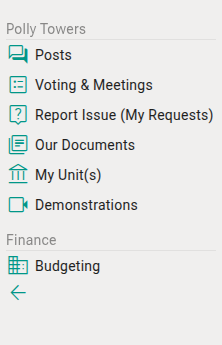
The menu displayed on the left after logging in is used to navigate all of the feature of the system. The example shown here is typical for an owner within an OMC. If you do not have permissions for something, then it simply does not appear, e.g. a resident logging in would not see the “Budget” option. A director logging in will see loads more options.
Responsive
Section titled “Responsive”If you are on a mobile device, there is not space to display the menu all of the time, so you will see the “burger menu”  in the top right corner, and you can click on that to open the menu.

If you are using a tablet type device, you might decide to use the condensed form of the menu.
Click on the arrow left at the bottom of the menu, and the menu will be compressed.
You can still see the icons to navigate, but you have more screen space left to work with.
Press the last item, the button right to expand the menu if you need reminding what the icons mean!