
Mail Merges
Mailmerges allow you to provide a template message, which can be sent to multiple contacts, with contact specific information inserted into the message.
Mailmerges can be sent by email or sent to a PDF for you to print and send by post.
Most bulk communications can be sent as posts.
We only need to use mailmerge when the communication must be personalised, with content specific to the recipient included. The vast majority of such communications are for chasing monies, where you want to produce emails or letters to owners who owe you money stating which units they own, and the total amount outstanding. You may also want to include a statement with all of their outstanding charges.
When charges are raised, they are initially sent and chased through the billing page but the mailmerge functionality allows more precise targetting and follow up, particularly for owners who did not respond to the first couple of reminders.
This kind of chasing is the core reason the mailmerge system exists, however it can also be used for sending any class of message, personally to owners and residents, if there is some reason that you want the message sent without publishing the information in the regular posts channel.
When creating a mailmerge, you can save it as a template for future use, we strongly recommend that you create templates for standard first, second and third warning letters for example. See managing communications templates
List View
Section titled “List View”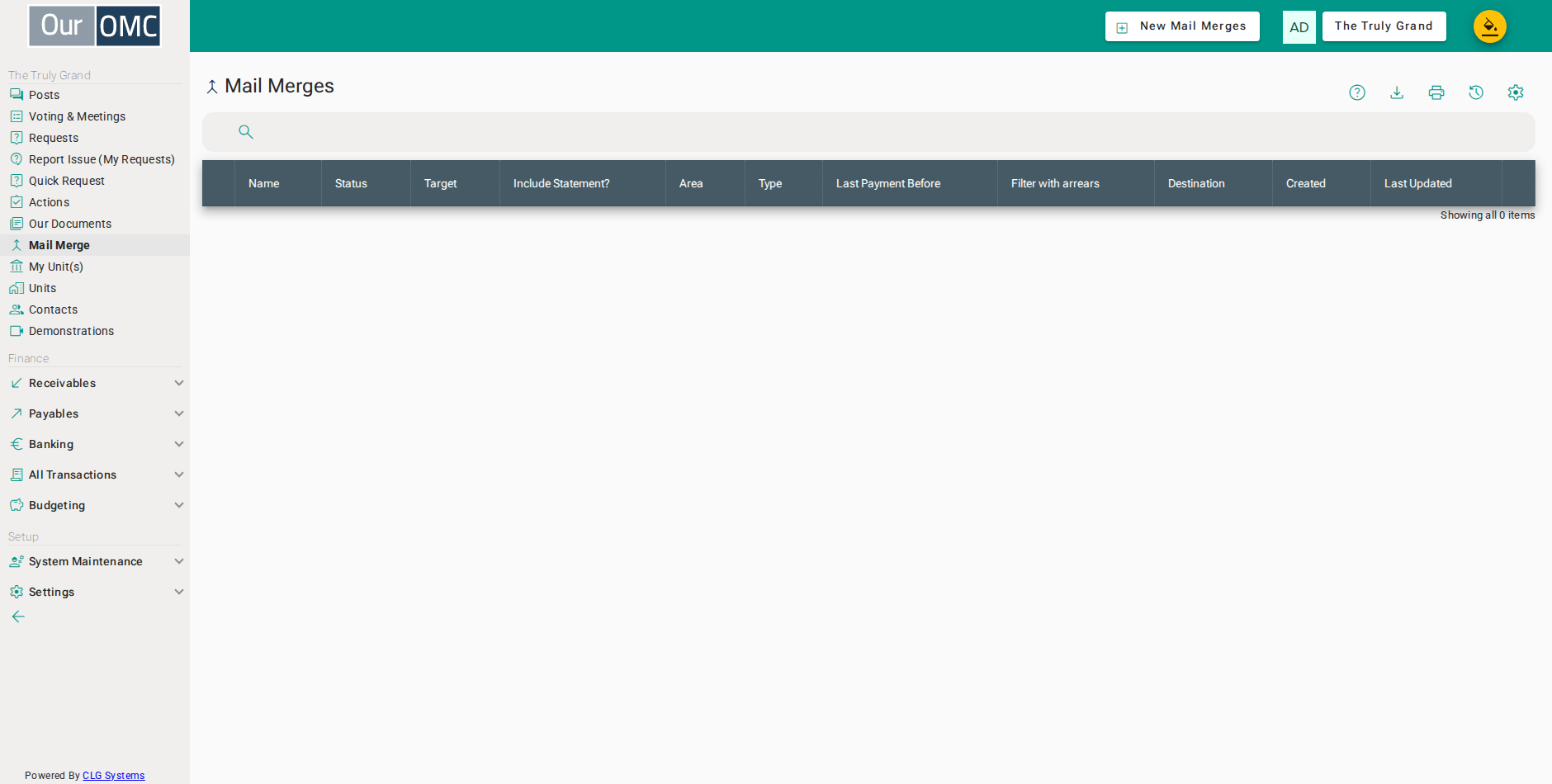
| Column | Type | Description |
|---|---|---|
| Unique Name (subject for the mail) | text | A unique name for this mail merge — also used as the subject line when it is sent by email. |
| Status | text | Where this mail merge is in its lifecycle: New while you are still setting it up, then Submitted, Working and Complete once you send it. |
| Target | picklist | Who to send to — owners (whether or not they live in the unit) or residents (whether or not they own it). |
| Include Statement? | boolean | When enabled, a statement of the recipient's outstanding charges is attached alongside the mail merge content. |
| Last Payment Before | date | Restrict recipients to those who have not made a payment since this date. |
| Filter with arrears | boolean | When enabled, only owners with arrears above the minimum figure below are included. |
| Destination | text | Whether this mail merge sends by email, or produces a PDF batch for you to print and post. |
| Created | dateTime | The date and time this mail merge was created. |
| Last Updated | dateTime | The date and time this mail merge was last updated. |
Detail View
Section titled “Detail View”
| Field | Type | Description |
|---|---|---|
| Unique Name (subject for the mail) | text | A unique name for this mail merge — also used as the subject line when it is sent by email. |
| Content | richText | The message to send, personalised for each recipient using placeholders such as [fullName], [address] and [outstanding] — see Communication Templates for the full list. |
| Preview | icon | Shows the merged content against a sample record — the first unit and owner matching your current filters — so you can check it looks right before sending anything. |
| Test | icon | Sends a copy of the merged content to your own inbox for a final check. Nothing is sent to owners or residents, and nothing is recorded against this mail merge. |
| Preview Data | icon | Shows exactly who this mail merge will go to before you commit to sending. Re-run it after changing a filter to see the effect immediately. |
| Send Mails | icon | Runs this mail merge for real, sending an email to every matching owner or resident. |
| Generate PDF | icon | Runs this mail merge for real, producing a PDF batch of letters for every matching owner or resident to print and post. |
| Target | picklist | Who to send to — owners (whether or not they live in the unit) or residents (whether or not they own it). |
| Include Statement? | boolean | When enabled, a statement of the recipient's outstanding charges is attached alongside the mail merge content. |
| Frequency | picklist | Restrict recipients to those on a specific payment frequency, such as monthly or annual — useful for excluding owners already on a payment plan. |
| Last Payment Before | date | Restrict recipients to those who have not made a payment since this date. |
| Filter with arrears | boolean | When enabled, only owners with arrears above the minimum figure below are included. |
| Minimum Arrears | number | The minimum arrears an owner must have to be included, once Filter with Arrears is enabled. |
| Created | dateTime | The date and time this mail merge was created. |
| Last Updated | dateTime | The date and time this mail merge was last updated. |
Creating a mail merge
Section titled “Creating a mail merge”Before sending the merge, you can and should preview the message to be sent, which will show you what the first message looks like, with the first matching contacts details inserted into the message. You should also preview the list of contacts to whom the message will be sent. If you want to see precisely what the message looks like, and if your GDPR agreements permit it, send a test message to yourself for review. Full instructions to create the merge are below.
- Click [Mail Merge] on the main menu
- Click on the new button
- Enter a name for the mail merge - this will be used as the mail subject
- Choose to target owners
- Choose to send by email
- Choose the Arrears Reminder template, which already has every available placeholder filled in
- Click Preview to check the merged content looks right before sending anything
- The preview opens showing the merged mail exactly as it would be sent - nothing is sent or saved
- Click Data to see who this mail merge would go to before sending anything
- With no filters set, this mail goes to every owner
- Click the Filter with Arrears checkbox to only include owners in arrears
- Enter a minimum arrears figure - only owners owing more than this are included
- Click Data again to see the effect of the arrears filter
- Now the notices only go to owners who owe more than €3000
- Choose Monthly to target owners on a regular payment plan
- Filter for owners who have not made a payment since this date
- Click Data to check whether anyone on a payment plan has fallen behind
- Good news - nobody on a payment plan has fallen behind
- Change the frequency filter back to Annually, to exclude owners on a payment plan
- Clear the last-payment-before filter, which only made sense for the payment-plan check
- Click Data one more time before sending
- So this mail will go to these owners who have arrears greater than €3000 and are not on a payment plan
- Click Save to create the mail merge
Generating a Mail Merge
Section titled “Generating a Mail Merge”When you generate a mail merge, it actually produces the custom messages. If destinaton is email, and the user has a valid email address, then the message is sent immediately. An attachment will be created, to include a personalised copy of the message for any recipient without a valid email address, so you can send by post. The system records all contacts to whom the message has been sent, and provides a copy of the actual message sent linked to the contact history. If the destination is PDF, all details are just put into an attache PDF file for posting.
- Click [Mail Merge] on the main menu
- Open the mail merge to send it for real
- Click Send Mails to run the merge for real
- Click [Mail Merge] on the main menu
- Reopen the mail merge to see the completed result
- The status has moved to Complete now the send has finished
- The number of emails sent is shown, and is clickable to see exactly who received mail
- Open the first contact who received a mail
- Click the Mailings tab - the merge mail is logged here too, just like a direct Send Email
- Click the subject to view a copy of the mail exactly as it was sent by this merge
- The mail sent by this merge is recorded against the contact, just like a direct Send Email