
Creating New OMCs
When you take on a new management contract, you create an OMC record to represent the Owners Management Company. Each OMC is an independent tenant — it has its own units, contacts, financials, and team members, fully separated from your other clients.
The slug you enter becomes part of every URL for that OMC and cannot be changed after the team is created, so choose it carefully.
A short, lowercase, hyphenated version of the development name works well (e.g. castle-way, the-oaks).
After saving the basic record, use the Setup action to create the team and configure the initial settings, then use the Download Template action to generate an Excel file you can use to bulk-import units, contacts, and historical data.
New OMC Form
Section titled “New OMC Form”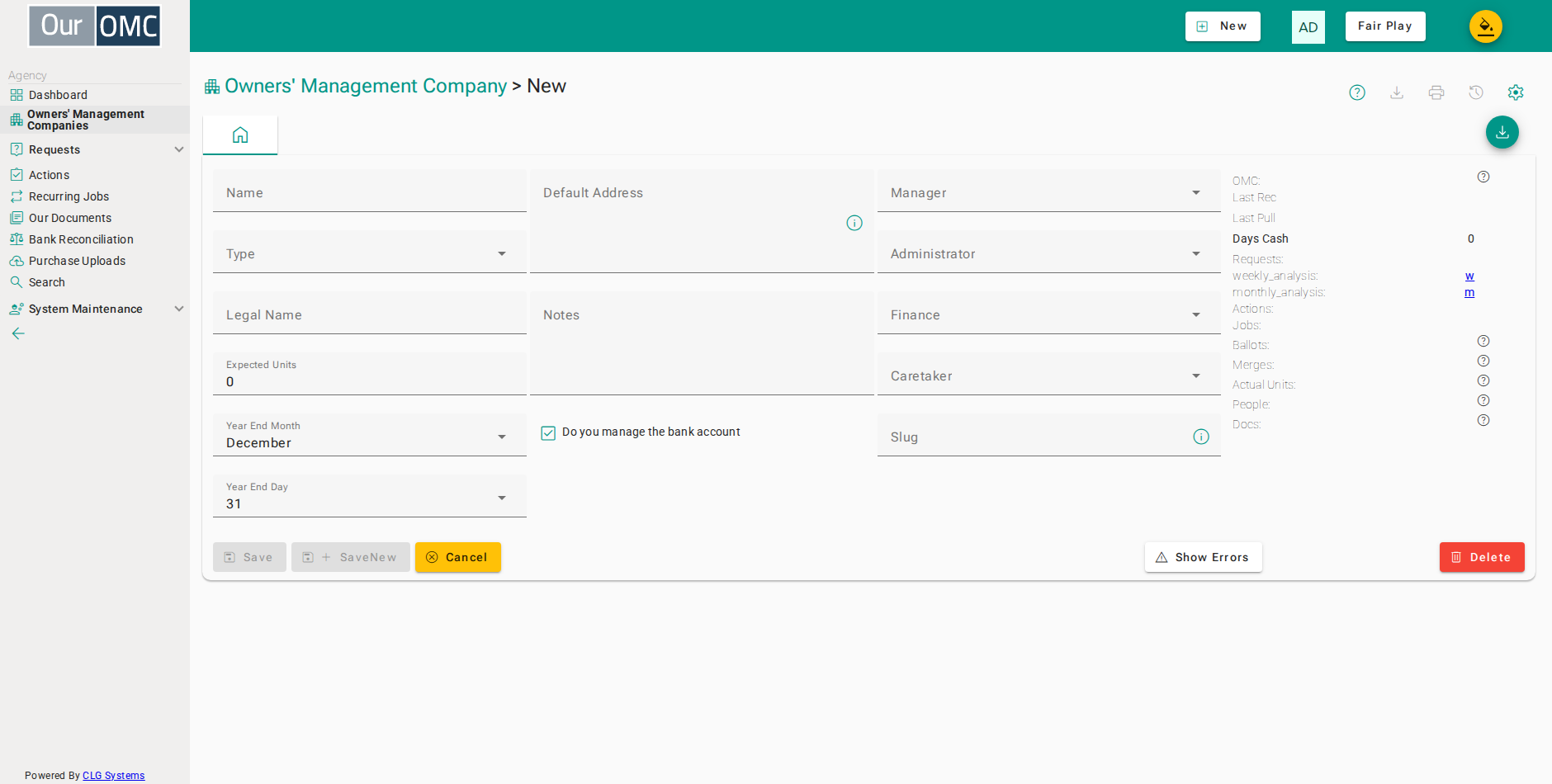
| Field | Type | Description |
|---|---|---|
| OMC | link | The display name of this OMC, shown as a link to its detail page throughout the system. |
| Name | text | The short name used to identify this OMC in lists and reports. This is the name your team will see day-to-day. |
| Last Rec | date | The date of the most recent bank reconciliation completed for this OMC. Use this to keep track of how up to date the accounts are. |
| Last Pull | dateTime | The date and time when banking transactions where last collected. |
| Days Cash | number | The number of days of operating expenses covered by the OMC's current cash balance. A useful at-a-glance indicator of financial health. |
| Type | picklist | The type of development this OMC manages, for example apartment complex, housing estate, or mixed use. Used for filtering and reporting. |
| Legal Name | text | The full registered legal name of the Owners' Management Company as it appears on the Companies Register. |
| Default Address | longText | The default correspondence address for this OMC, used as the pre-filled address on letters, notices, and mail merges. |
| Notes | longText | Internal notes visible only to your team. Use this for setup reminders, handover notes, or any context that doesn't fit elsewhere. |
| Do you manage the bank account | boolean | Indicates whether your company manages the OMC's bank account directly. When enabled, bank reconciliation and payment features are available for this OMC. |
| Requests | link | The number of open maintenance or service requests currently logged for this OMC. Click to view the full list. |
| weekly_analysis | link | A link to the weekly activity analysis report for this OMC, showing recent financial and operational movements. |
| monthly_analysis | link | A link to the monthly analysis report for this OMC, providing a summary of income, expenditure, and activity over the month. |
| Actions | link | The number of outstanding to-do actions assigned to this OMC. Click to view and manage the action list. |
| Jobs | link | The number of recurring maintenance or management jobs set up for this OMC. Click to review or configure the job schedule. |
| Ballots | link | The number of ballots or votes that have been run for this OMC. Click to view ballot history or create a new one. |
| Merges | link | The number of mail merges sent to contacts in this OMC. Click to view merge history or start a new communication. |
| Expected Units | number | The total number of units anticipated in this development. Used to flag discrepancies when the actual unit count differs from the legal structure. |
| Year End Month | picklist | The month in which this OMC's financial year ends. Combined with Year End Day, this determines when annual accounts are prepared. |
| Year End Day | picklist | The day of the month on which this OMC's financial year ends. Combined with Year End Month, this sets the annual accounts date. |
| Actual Units | link | The actual number of units registered in this OMC. Click to view the full list of units in the development. |
| People | link | The number of contacts registered in this OMC, including owners, residents, and keyholders. Click to view or manage contacts. |
| Docs | link | The number of documents stored against this OMC, such as leases, accounts, or meeting minutes. Click to browse the document library. |
| Manager | picklist | The team member responsible for day-to-day management of this OMC. Used to filter the "My Managed OMCs" view. |
| Administrator | picklist | The team member acting as company secretary or administrator for this OMC. Used to filter the "My Administered OMCs" view. |
| Finance | picklist | The team member responsible for finance and accounts for this OMC. |
| Caretaker | picklist | The caretaker or on-site staff member assigned to this development. |
| Slug | text | A short, URL-friendly identifier for this OMC used in links and integrations. Typically generated automatically from the OMC name. |
Examples
Section titled “Examples”Creating an OMC
Section titled “Creating an OMC”Create the OMC record, run the Setup action to initialise the team and default settings, then download the Excel import template to prepare your data.
- Click [Owners' Management Companies] on the main menu
- Click on the new button to show options
- Select [New OMC] from the new options menu
- Enter [The Grand OMC] into the [Name] field
- Select the type of OMC you want to create
- Enter [The Grand OMC CLG] into the [Legal Name] field
- Enter [test-omc] into the [Slug] field
- Select manager for new OMC
- Select year end month
- Select year end day
- Enter address for the OMC
- Click on the save button
- Click the [Download Template] action
- Enter the first line of address for unit addresses (e.g. Castle Way)
- Select Full Samples to generate unit data with addresses, type, size, bedrooms, floor and car park data
- Select Full Samples to generate realistic owner contacts for the first 10 units
- Check to populate the budget codes sheet with a typical OMC chart of accounts
- Check to add one sample supplier per expense category
- Check to generate previous year service charges with receipts for all units
- Check to generate purchase invoices and payments for the previous year
- Click Download to generate and save the Excel import template
- Click the [Complete Setup] action
- Click on the save button to create the team and complete setup
Importing Units
Section titled “Importing Units”Use the Excel template to bulk-import the unit list for a new OMC, including type, category, area, and size information.
- Click [Settings / Imports] on the main menu
- Select Unit Import to load units from the CSV extracted from the Excel template
- Upload the units CSV file extracted from the Excel template
- Select row 2 as the first data row — row 1 is the header used for column auto-mapping
- Map the empty Category value to none — units will be imported with no category assigned
- Skip the Area/Block column — areas can be assigned to units after import
- Map the empty Core value to none — units will be imported with no core assigned
- Skip the NrCarSpaces column — car space counts can be updated after import
- Click Proceed to validate all mappings and submit the unit import to the server
Importing Contacts
Section titled “Importing Contacts”Bulk-import the initial set of owner contacts and link each one to their unit with the appropriate role.
- Click [Settings / Imports] on the main menu
- Select People to import contacts from the CSV extracted from the Excel template
- Upload the contacts CSV file extracted from the Excel template
- Select row 2 as the first data row — row 1 is the header used for column auto-mapping
- Map Field7 (Surname column) to Person Last Name
- Click Proceed to submit the contacts import to the server