
Agent Settings
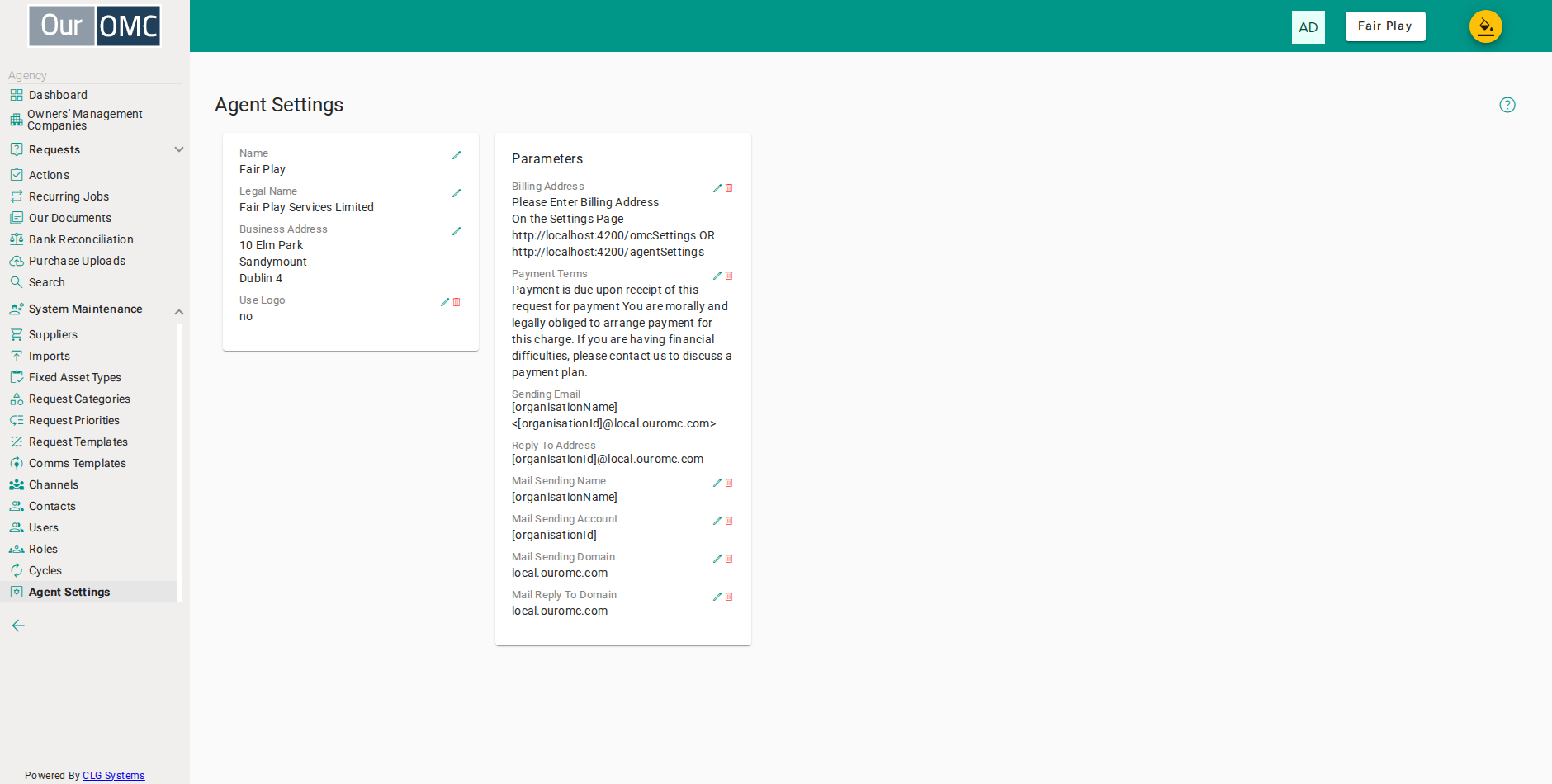
Agent Settings stores the identity and defaults for your property management company — the fields configured here are the defaults across every OMC you manage.
Name and Legal Name
Section titled “Name and Legal Name”These two fields serve distinct purposes and it is important to get both right.
Name is the common name of your agency (e.g. “Fair Play”). It is the everyday name that appears in:
- Invoice emails sent to contacts: “Sent by [Agent Name] on behalf of [OMC Name]”
- The
[agentName]token available in all communication templates — letters, mail-merge documents, and email bodies - Read-only on each OMC’s Settings page under Primary Agent, confirming which agency manages that OMC
Legal Name is the registered company name (e.g. “Fair Play Services Limited”). It is stamped on every PDF the system produces across all your managed OMCs:
- The footer of every invoice, statement, and report: “Issued By: [Agent Legal Name]”
- The Budget Report PDF header section
Getting the legal name wrong means the incorrect registered name appears on every financial document issued across all your properties. It should match your Companies Registration Office name exactly.
Billing Address
Section titled “Billing Address”The billing address is what will appear by default on invoices and statements as the address of the OMC.
The Use Logo field controls whether your agency logo appears in outgoing emails.
- Yes — the logo appears at the top of every email the system sends on your behalf. You can also place the logo at a specific position in any communication template by inserting the
[logo]token in the template body. - No — the logo is suppressed entirely. Any
[logo]tokens in templates are silently removed rather than replaced with an image.
There is currently no in-app option to upload or replace a logo. Send your logo file to [email protected] to have it added to the system. The logo must be exactly 163 × 53 px — images outside these dimensions will be distorted when displayed in emails.
Default Parameters
Section titled “Default Parameters”The Billing Address and Payment Terms fields in the Parameters card are agent-level defaults that are inherited by every OMC you manage. They appear on OMC Settings pages and are shown in regular (non-bold) text when the OMC is using the inherited agent value.
If a specific OMC needs a different billing address or payment terms, an override can be set directly on that OMC’s Settings page. An overridden value is shown in bold on the OMC Settings page to indicate it differs from the agent default.
To remove an agent-level override and revert to the system default, click the bin icon next to the field and confirm the removal.
Mail Settings
Section titled “Mail Settings”The Mail Sending Domain, Mail Reply To Domain, Mail Sending Name, and Mail Sending Account fields
allow the system to send emails from a custom domain (e.g. omcs.yourdomain.com) rather than the default ouromc.com address.
Configuring a custom sending domain involves:
- Technical DNS setup on your side (you’ll need someone technical to setup a subdomain and add DNS records to it)
- Additional configuration by the OurOMC support team
- Additional charges for personalised sending domains
Contact [email protected] if you wish to set up a custom mail sending domain.
The Sending Email and Reply To Address rows are read-only — they display the currently computed sending address rather than a directly editable value.
AI Level
Section titled “AI Level”The AI Level controls how much the AI assistant does on requests. The level you set here is the default for every OMC you manage. An OMC can override it on its own OMC Settings page. If you have not set a level, Review is used.
- None — no AI functions.
- Review (the default) — no AI responses are sent automatically. When you open a new request, you are offered the AI’s response to accept, change or reject — see Reviewing AI Answers.
- Triage — AI classifications are applied and first responses are sent automatically on newly created requests. Review stays available for everything else.
Comments written by the AI appear under the name OurOMC Assistant.
Examples
Section titled “Examples”Changing the Agency Name
Section titled “Changing the Agency Name”Update the trading name that appears in email footers and communication templates.
- Click [System Maintenance / Agent Settings] on the main menu
- Click the edit icon next to Name
- Enter the new trading name
- Save the name change
Changing the Legal Name
Section titled “Changing the Legal Name”Update the registered company name that is stamped on every invoice, statement, and PDF produced across all your managed OMCs.
- Click [System Maintenance / Agent Settings] on the main menu
- Click the edit icon next to Legal Name
- Enter the new legal name
- Save the legal name change
Changing the Business Address
Section titled “Changing the Business Address”Update the agency’s registered or trading address as it appears on outgoing documents.
- Click [System Maintenance / Agent Settings] on the main menu
- Click the edit icon next to Business Address
- Enter the business address
- Save the address
Using a Logo
Section titled “Using a Logo”Toggle whether the agency logo appears in outgoing emails, and confirm the logo is rendering as expected.
- Click [System Maintenance / Agent Settings] on the main menu
- Click the edit icon next to Use Logo
- Select Yes to enable the logo
- Save — the logo image should now appear
- Click edit to turn the logo off
- Select No to disable the logo
- Save — the logo image should be removed
Setting a Default Billing Address
Section titled “Setting a Default Billing Address”Set the agent-level billing address that is inherited by all OMCs unless they override it on their own Settings page.
- Click [System Maintenance / Agent Settings] on the main menu
- Click the edit icon next to Billing Address
- Enter the billing address
- Save the billing address
- To revert to the default, click the bin icon next to Billing Address
- Click [OK] on the confirmation dialog
Setting Default Payment Terms
Section titled “Setting Default Payment Terms”Set the agent-level payment terms that appear on invoices across all managed OMCs.
- Click [System Maintenance / Agent Settings] on the main menu
- Click the edit icon next to Payment Terms
- Enter the default payment terms
- Save the payment terms
- To revert to the default, click the bin icon next to Payment Terms
- Click [OK] on the confirmation dialog