
Contacts
Contacts are the owners, residents, letting agents and any other individuals or organisations the OMC deals with. The Entity Type field records whether a contact is a real person or an organisation such as a company or housing body. Units, service requests and actions can all be linked to contacts, and every email sent to or received from a contact is tracked in the system.
Contacts Are Users
Section titled “Contacts Are Users”Most contacts are also users of the system, by creating a contact and linking it to a unit as an Owner, Owner Occupier or Resident, you are granting them access to the system. Additional rights, such a director or accountant privileges can also be granted to contacts.
The Contacts List
Section titled “The Contacts List”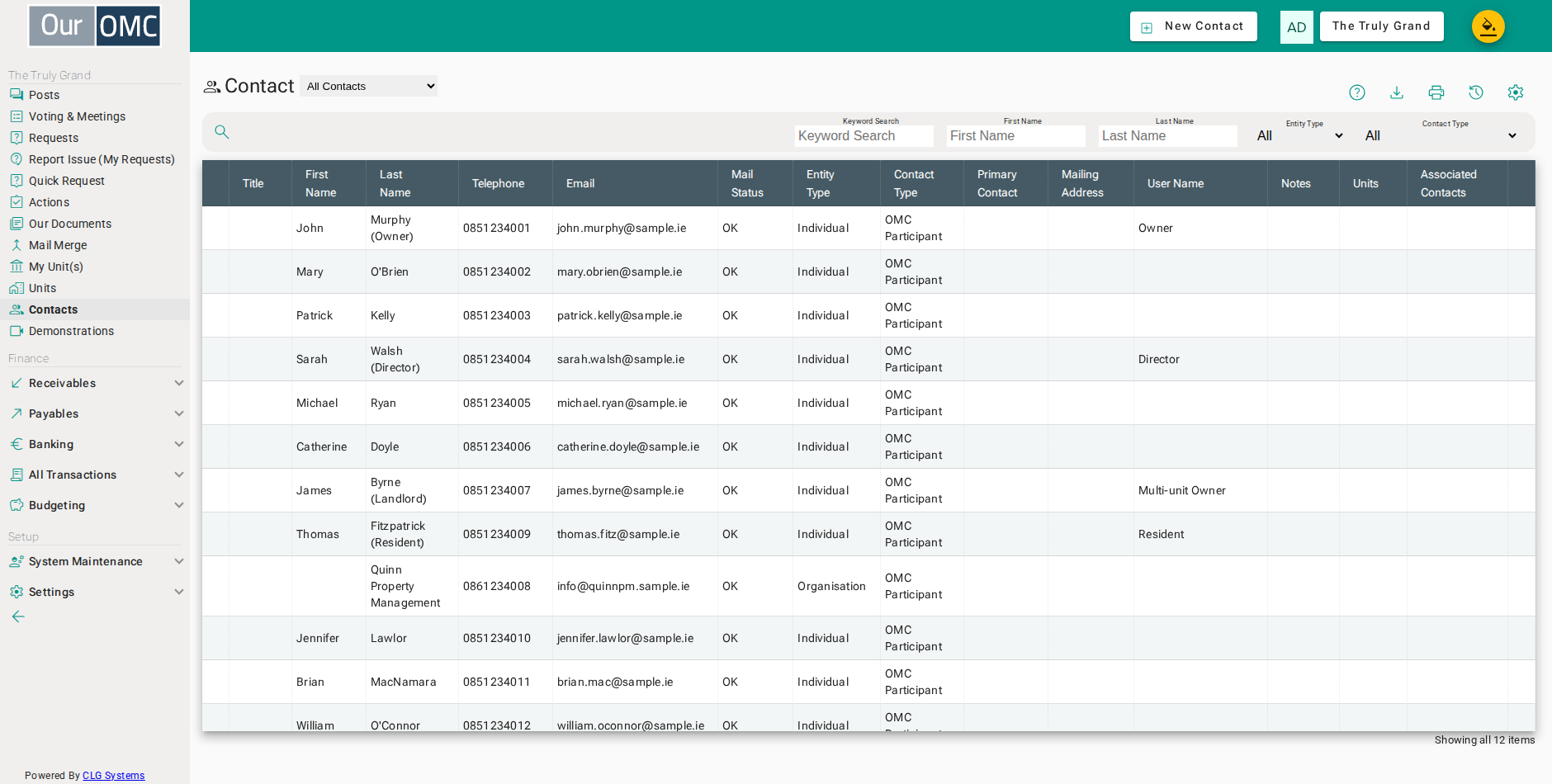
Built-in views filter the list by each contact’s relationship with the OMC — current members, directors, suppliers, past participants and more.
| View | Shows |
|---|---|
| All Contacts | All contacts within the OMC |
| Current Members | Contacts who are currently members of the OMC |
| OMC Participant | Current and future owners and residents of the OMC |
| Past Participant | Contacts previously involved with the OMC, but no longer active |
| Director | Contacts who serve as directors of the OMC |
| Accountant | Accounting professionals working with the OMC |
| Interested party | Neighbours and other people with a non professional interest in the business of the OMC |
| Solicitor | Solicitors and other legal professionals engaged in a professional capacity with the OMC |
| Regulatory Professional | Inspectors from Council, Fire Brigade, Loss Adjusters, Risk Assessors etc. |
| Supplier | People and companies who supply goods or services to the OMC |
| Agency Staff | Staff and owners of the managing agency |
| Unknown | Contacts not yet classified, e.g. created automatically from an unknown email address |
| Column | Type | Description |
|---|---|---|
| Title | picklist | Salutation title for this contact (e.g. Mr, Ms, Dr). |
| First Name | text | The contact's first or given name. |
| Last Name | text | The contact's last name or family name. |
| Telephone | phone | Primary telephone number for this contact. Numbers must begin with a 0, contain only digits and spaces, and be at least 8 characters long. |
| Email address used for login and correspondence. The address must be unique across the contacts in the OMC; the system checks the format and verifies the domain name is real before saving. Once the contact has logged in, the address can only be changed with the Edit Email Address action. | ||
| Mail Status | picklist | Whether the system will send email to this contact — only OK allows mail to be sent. The status updates automatically when a mail bounces, the address proves invalid, or a spam complaint is received; a contact can also be marked as opted out. After correcting a bad address, set the status back to OK manually. |
| Entity Type | picklist | Whether this contact is an individual person or an organisation such as a company or housing body. For an organisation, the name field holds the organisation name. |
| Contact Type | picklist | The relationship of this contact to the OMC — for example OMC Participant, Director or Supplier. This is informational only: setting Director here does not grant director access. |
| Primary Contact | link | For an associated contact, the organisation or contact they belong to. Click through to open the primary contact's record. |
| Mailing Address | longText | Postal address used on service charges and correspondence. Only enter this for contacts who are not owner occupiers — owners are assumed non-resident and need a mailing address for service charges; for an owner occupier leave it blank and the unit's own address is used. |
| User Name | text | The login account this contact connects with, shown once they have logged in. While the link exists the email address cannot be edited — use the Edit Email Address action to set a new address and break the link. |
| Notes | longText | Internal notes about this contact, visible only to management team members. |
| Units | grid | Units associated with this contact, including their role and start/end dates. |
| statusField | icon | Current ownership or membership status indicator. |
| Unit | link | The unit this contact is associated with. |
| Role | link | The role this contact holds for this unit (e.g. Owner, Resident). |
| From | date | The date this person's association with the unit began. |
| Until | date | The date this person's association with the unit ended. |
| Notes | longText | Notes about this unit relationship. |
| Associated Contacts | grid | Contacts who belong to this contact, typically the employees of an organisation. Each associated contact can log in and has access to all of the units this contact is linked to. |
| Person Name | link | Name of the associated contact. |
| Telephone | phone | Phone number of the associated contact. |
| Email of the associated contact. | ||
| Notes | longText | Notes about this association. |
Detail View
Section titled “Detail View”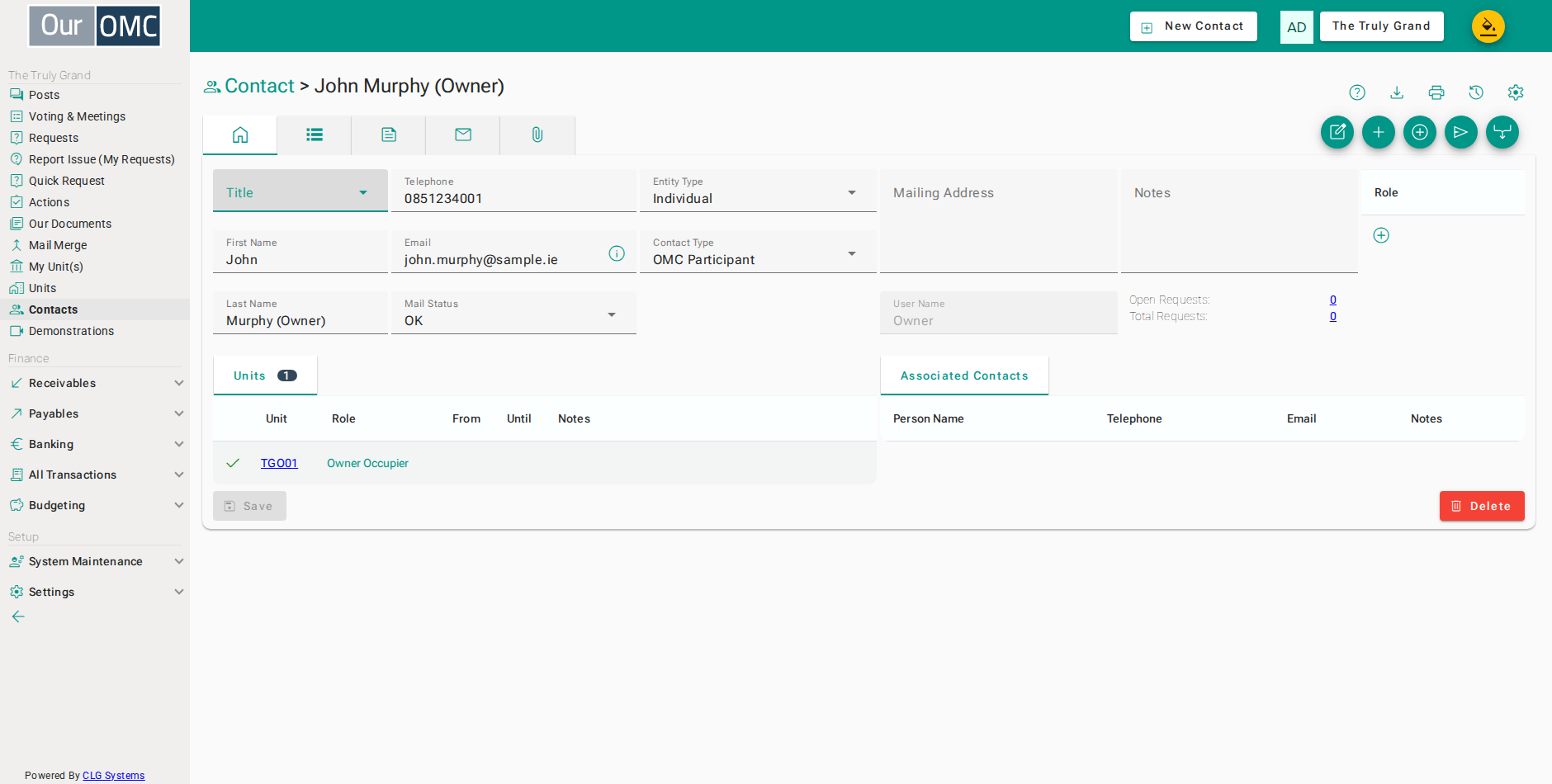
| Field | Type | Description |
|---|---|---|
| Title | picklist | Salutation title for this contact (e.g. Mr, Ms, Dr). |
| First Name | text | The contact's first or given name. |
| Last Name | text | The contact's last name or family name. |
| Telephone | phone | Primary telephone number for this contact. Numbers must begin with a 0, contain only digits and spaces, and be at least 8 characters long. |
| Email address used for login and correspondence. The address must be unique across the contacts in the OMC; the system checks the format and verifies the domain name is real before saving. Once the contact has logged in, the address can only be changed with the Edit Email Address action. | ||
| Mail Status | picklist | Whether the system will send email to this contact — only OK allows mail to be sent. The status updates automatically when a mail bounces, the address proves invalid, or a spam complaint is received; a contact can also be marked as opted out. After correcting a bad address, set the status back to OK manually. |
| Entity Type | picklist | Whether this contact is an individual person or an organisation such as a company or housing body. For an organisation, the name field holds the organisation name. |
| Contact Type | picklist | The relationship of this contact to the OMC — for example OMC Participant, Director or Supplier. This is informational only: setting Director here does not grant director access. |
| Primary Contact | link | For an associated contact, the organisation or contact they belong to. Click through to open the primary contact's record. |
| Mailing Address | longText | Postal address used on service charges and correspondence. Only enter this for contacts who are not owner occupiers — owners are assumed non-resident and need a mailing address for service charges; for an owner occupier leave it blank and the unit's own address is used. |
| User Name | text | The login account this contact connects with, shown once they have logged in. While the link exists the email address cannot be edited — use the Edit Email Address action to set a new address and break the link. |
| Notes | longText | Internal notes about this contact, visible only to management team members. |
| Open Requests | link | Number of currently open service requests linked to this contact. |
| Total Requests | link | Total number of service requests ever linked to this contact. |
| Units | grid | Units associated with this contact, including their role and start/end dates. |
| statusField | icon | Current ownership or membership status indicator. |
| Unit | link | The unit this contact is associated with. |
| Role | link | The role this contact holds for this unit (e.g. Owner, Resident). |
| From | date | The date this person's association with the unit began. |
| Until | date | The date this person's association with the unit ended. |
| Notes | longText | Notes about this unit relationship. |
| Roles | grid | Standalone roles granted to this contact, such as Director or Accountant. A role holder can log in to the system with the privileges of the role, and licensing fees might apply. |
| Role | picklist | The role assigned to this contact. |
| icon | Click to remove item from list | |
| Associated Contacts | grid | Contacts who belong to this contact, typically the employees of an organisation. Each associated contact can log in and has access to all of the units this contact is linked to. |
| Person Name | link | Name of the associated contact. |
| Telephone | phone | Phone number of the associated contact. |
| Email of the associated contact. | ||
| Notes | longText | Notes about this association. |
Actions
Section titled “Actions”| Action | Description |
|---|---|
Edit Email Address | Update the email address for this contact |
Associate Contact | Create a new contact associated to this contact |
Create Request | |
Send Email | |
Merge | Merge this contact record and all related data into another person record |
| Main | Shows the main form fields as described above | |
| Actions | Scheduled to-do actions related to this contact. | |
| Notes | Notes and discussion threads about this contact. | |
| Mailings | Every email sent to this contact from the system. Click the subject to view a copy of the mail exactly as it was sent. | |
| Attached Files | Files stored on this contact's record. Once attached here, a file can be included in any email sent to the contact. |
Actions
Scheduled to-do actions related to this contact.
Notes
Notes and discussion threads about this contact.
Mailings
Every email sent to this contact from the system. Click the subject to view a copy of the mail exactly as it was sent.
| Field | Type | Description |
|---|---|---|
| From | text | The sender email address. |
| To | text | The recipient email address. |
| Class | text | The type or class of this email. |
| Subject | link | The subject line of the email. |
| Sent | dateTime | The date and time this email was sent. |
| Size | text | The size of the email message. |
| Status | number | The HTTP response code from the mail server. |
| Attached | link | Number of files attached to this email. |
| Status Text | picklist | The delivery status of this email. |
Attached Files
Files stored on this contact's record. Once attached here, a file can be included in any email sent to the contact.
Working With Contacts
Section titled “Working With Contacts”Creating Contacts
Section titled “Creating Contacts”Contacts are rarely created directly on this page. Almost all contacts arrive in one of four ways:
- The initial set of owner contacts is imported when the OMC is first set up — see Creating OMCs
- New contacts are created by the Add Contact and Transfer Unit Ownership actions on the Units page.
- If an email is received from an unknown email address, a contact is created automatically with contact type Unknown.
- People can register online and ask to be added to a unit, which creates a contact record.
Creating a contact directly is still useful for professionals — e.g. solicitors, accountants or regulatory professionals — organisation and people who are not linked to any unit.
- Click [Contacts] on the main menu
- Click on the new button
- Choose a salutation title for the contact
- Enter the contact's first name
- Enter the contact's last name
- Enter the telephone number — numbers should begin with a 0
- Enter the email address — it must be unique within the OMC, and the domain name is verified before saving
- Select Individual — choose Organisation for companies such as housing bodies
- Select the contact type that best describes the relationship with the OMC
- Click on the save button
Updating details
Section titled “Updating details”- Click [Contacts] on the main menu
- Open the contact to update their details
- Update the telephone number
- Record anything useful about the contact — notes are visible to the management team only
- Click on the save button
Raising a service request
Section titled “Raising a service request”When a contact telephones the office to report a problem, raise the request directly from their record so it is logged against them from the start.
- Click [Contacts] on the main menu
- Open the contact who is reporting the issue
- Click Create Request to raise a service request for this contact
- The stepper opens on the summary, ready for the issue to be described
Attaching files to a contact
Section titled “Attaching files to a contact”Files stored on a contact’s record can be included in any email sent to them.
- Click [Contacts] on the main menu
- Open the contact to store a file on their record
- Open the Attached Files tab
- Attach the photo of the broken sign to the contact record
Logins and Access
Section titled “Logins and Access”A contact linked to a unit can log in to the system with the privileges of the role they hold on that unit. A contact can also be granted a standalone role — such as System Admin, Director, Agent or Accountant — on the Roles grid of their record. See the roles guide for what each role allows.
Changing a contact’s email address
Section titled “Changing a contact’s email address”Once a contact has logged in, their record is tied to their login account and the email field on the form is locked. The Edit Email Address action sets the new address and breaks the link to the previous login — when someone registers with the new address, they are matched to the contact again.
- Click [Contacts] on the main menu
- Open the contact whose email address needs to change
- Click Edit Email Address to set the new address
- Enter the new email address
- Click Update to change the address
Directors & Accountants
Section titled “Directors & Accountants”Recording a director (or an accountant) involves two separate settings. Setting the Contact Type to Director or Accountant records the appointment for your own information — the contact appears in the Director view of the contacts list, but gains no access. To give access to the system, grant the appropriate role on the Roles grid. To remove system access, remove the role from the contact.
- Click [Contacts] on the main menu
- Open the contact who is being appointed as a director
- Set the Contact Type to Director — this records the appointment but grants no access by itself
- Click the new button to add a role to the contact
- Choose the Director role — this is what grants login privileges to the contact
- Click on the save button
Organisations and Associated Contacts
Section titled “Organisations and Associated Contacts”Some of the OMC’s contacts are companies rather than people — most commonly an approved housing body that owns multiple units in the development. Create one contact with Entity Type Organisation and link it to every unit the organisation owns.
- Click [Contacts] on the main menu
- Click on the new button
- Select Organisation — this contact is a company, not an individual
- Enter the organisation name in the name field
- Enter the organisation's main telephone number
- Enter the organisation's email address
- Click on the save button
You rarely deal with an organisation — you deal with the people who work there. Use the Associate Contact action on the organisation’s record to create a contact for each employee you work with. Associated contacts show the organisation as their Primary Contact, and:
- each associated contact can log in to the system with their own email address
- they are granted access to all of the units the organisation is linked to
- they can see all of the requests the organisation has raised with the OMC
This means a housing body’s whole team can follow service charges, requests and correspondence for their units, without sharing a mailbox or a login.
- Click [Contacts] on the main menu
- Open the organisation to add the people you deal with there
- Click Associate Contact to add an employee of the organisation
- Enter the employee's first name
- Enter the employee's last name
- Enter their direct telephone number
- Enter their email — this is the address they will log in with
- Click Save to create the associated contact
- Open the Associated Contacts tab on the organisation record
- The new contact is listed against the organisation, with access to all of its units and requests
Emailing Contacts
Section titled “Emailing Contacts”Use the Send Email action to write to a contact directly from their record. Every mail sent is logged on the contact’s Mailings tab, where a copy of the exact mail can be reviewed at any time. If the contact replies, a service request is created automatically — the response is tracked in the system rather than sitting unnoticed in a personal mailbox.
The Mail Status field controls whether mail is sent at all: only OK allows delivery. The status updates automatically when a mail bounces, the address proves invalid, or a spam complaint is received; a contact can also be marked as opted out.
- Click [Contacts] on the main menu
- Open the contact you want to email
- Click Send Email to write to the contact
- Enter a subject for the email
- Write the message — saved templates can also be applied
- Include the photo from the contact's attached files
- Click Send to email the contact
- Confirm sending the email — the mail is queued and delivered in the background
- Click [Contacts] on the main menu
- Reopen the contact to review the mail history
- Open the Mailings tab — every email sent to the contact is logged here
- Click the subject to view a copy of the mail exactly as it was sent
- A copy of the sent mail opens, showing the message and its attachments
Creating letters to send by post
Section titled “Creating letters to send by post”The same Send Email dialog can be used to create standard letters — a debt collection letter is a common example — populated with the contacts details. The file produced is attached to the contact, and you can then print or send the file by email as required.
- Click [Contacts] on the main menu
- Open a contact to prepare a letter for them
- Click Send Email to open the mail dialog
- Enter a subject for the letter
- Choose the Arrears Reminder template - a standard letter with every placeholder already filled in, useful for things like debt collection
- Click Preview to check the merged letter before producing it
- The preview shows the letter exactly as it would be produced, merged with this contact's own details
- Click Attach to produce the letter as a PDF and attach it to the contact - no email is sent
- Confirm producing and attaching the letter
- Click [Contacts] on the main menu
- Reopen the contact to see the attached letter
- Open the Attached Files tab - the letter is saved here as a record that it was produced, without needing to email it
- The Arrears Reminder letter is attached to the contact's record
The Register of Members
Section titled “The Register of Members”Under section 169 of the Companies Act 2014, an OMC is legally required to maintain a register of all past and present members, so contact records must never be deleted. When the ownership of a unit changes, the previous owner’s unit link is closed and they lose automatic access to the system, but their record is retained.
Deleting a contact
Section titled “Deleting a contact”Deletion is blocked for any contact that has history in the system — unit links, actions, service requests, transactions, or mail on record. For contacts with no history at all (e.g. an entry created in error before any activity was recorded), deletion is permitted.
- Click [Contacts] on the main menu
- Click on the new button
- Create a contact in error — it has no history, so it can still be deleted
- Click on the save button
- Click on the delete button
- You would click [Delete] on the confirmation dialog
Merging duplicates
Section titled “Merging duplicates”Duplicate contacts happen — the same person entered twice with a spelling variation, or a contact created automatically from an unrecognised email address who turns out to be an existing owner. Because contacts with history cannot be deleted, the Merge action is the way to tidy them up.
Open the duplicate record — the one you want to remove — and click the Merge action, then choose the contact you want to keep. All related data moves to the surviving contact: unit links, service requests, actions, emails, transactions, notes and attached files. Fields that are blank on the surviving contact are filled in from the duplicate; where the surviving contact already has a value, its value takes precedence.
- Click [Contacts] on the main menu
- Open the duplicate record — the contact that will be removed by the merge
- Click Merge to consolidate this record into another contact
- Choose the contact to keep — all related data will be moved onto this record
- Click Merge to combine the two records
- Confirm the merge — it cannot be undone
- The surviving contact opens — the phone number was blank on this record, so it has been filled in from the duplicate