
Ballots
Ballots are how an OMC conducts formal votes with members electronically. When a ballot is setup, a notification can be sent to all persons eligible to vote.
Votes in the residents channel, would generally apply to matters that do not directly require the OMC to spend money. Such votes are often operated on a one user one vote basis.
Votes in the members channel, are generally conducted on the basis of company rules, that is.
- One Unit One Vote
- When a member who owns multiple units votes, they cast one vote for each of their units simultaneously
- When a unit is jointly owned, all parties who share ownership of the unit share that vote. Once the vote has been cast, if any owner of that unit choose to vote again, they will be updating the same vote rather than casting a new vote.
The ballot has a start and end time, which is the default start and end time for each question to be voted on. However it is possible for the manager to open and close the votes on each question as appropriate.
After the ballot ends, the summary of the result, i.e. how many people voted for each option, will be available to all parties who were eligible to vote.
Voting is not anonymous, the directors have a record of who actually voted, so that the vote can be formally validated if necessary.
If the vote is one unit one vote, and the unit is in arrears, no vote can be cast for that unit. Make sure your service charges have been paid to be sure you can vote.
List View
Section titled “List View”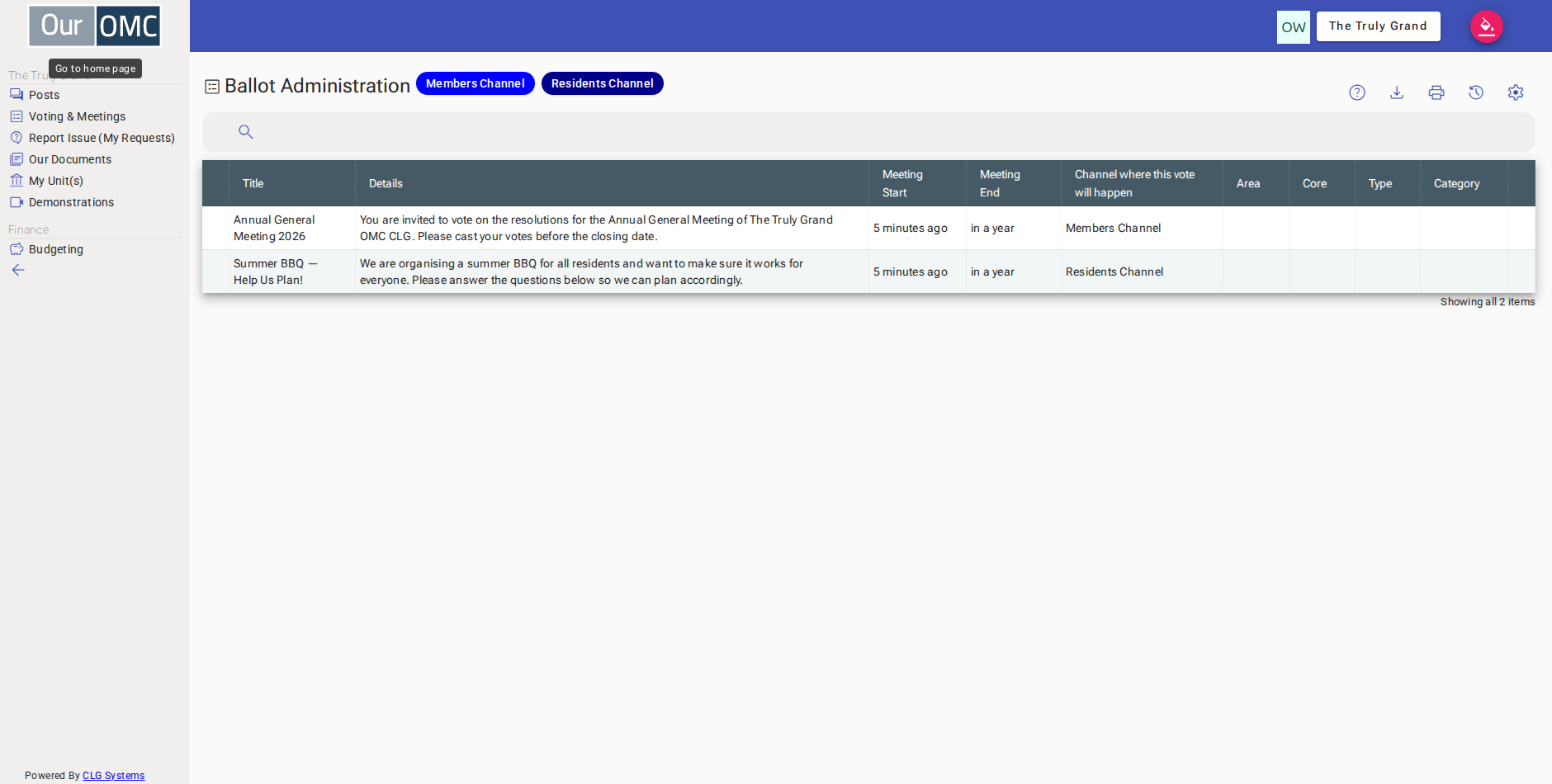
| Column | Type | Description |
|---|---|---|
| Title | text | The question or resolution being voted on. |
| Details | richText | The full text of the resolution or question, including any supporting background the OMC has provided. Read this carefully before casting your vote. |
| Meeting Start | dateTime | The date and time when voting opens — you can cast your vote any time from this point until the meeting ends. |
| Meeting End | dateTime | The date and time when voting closes — no votes can be accepted after this point. |
| Channel where this vote will happen | picklist | The channel this ballot is conducted in, which determines which members are eligible to vote (e.g. all members, or residents only). |
| Area | text | The area of the development this ballot relates to, if it applies to a specific zone rather than the whole OMC. |
| Core | text | The core or block within the development that this ballot applies to, where the OMC is divided into cores. |
| Type | text | The unit type this ballot is scoped to, if voting eligibility is limited to a particular type of unit. |
| Category | text | The unit category this ballot is scoped to, if voting eligibility is limited to a particular category of unit. |
Detail View
Section titled “Detail View”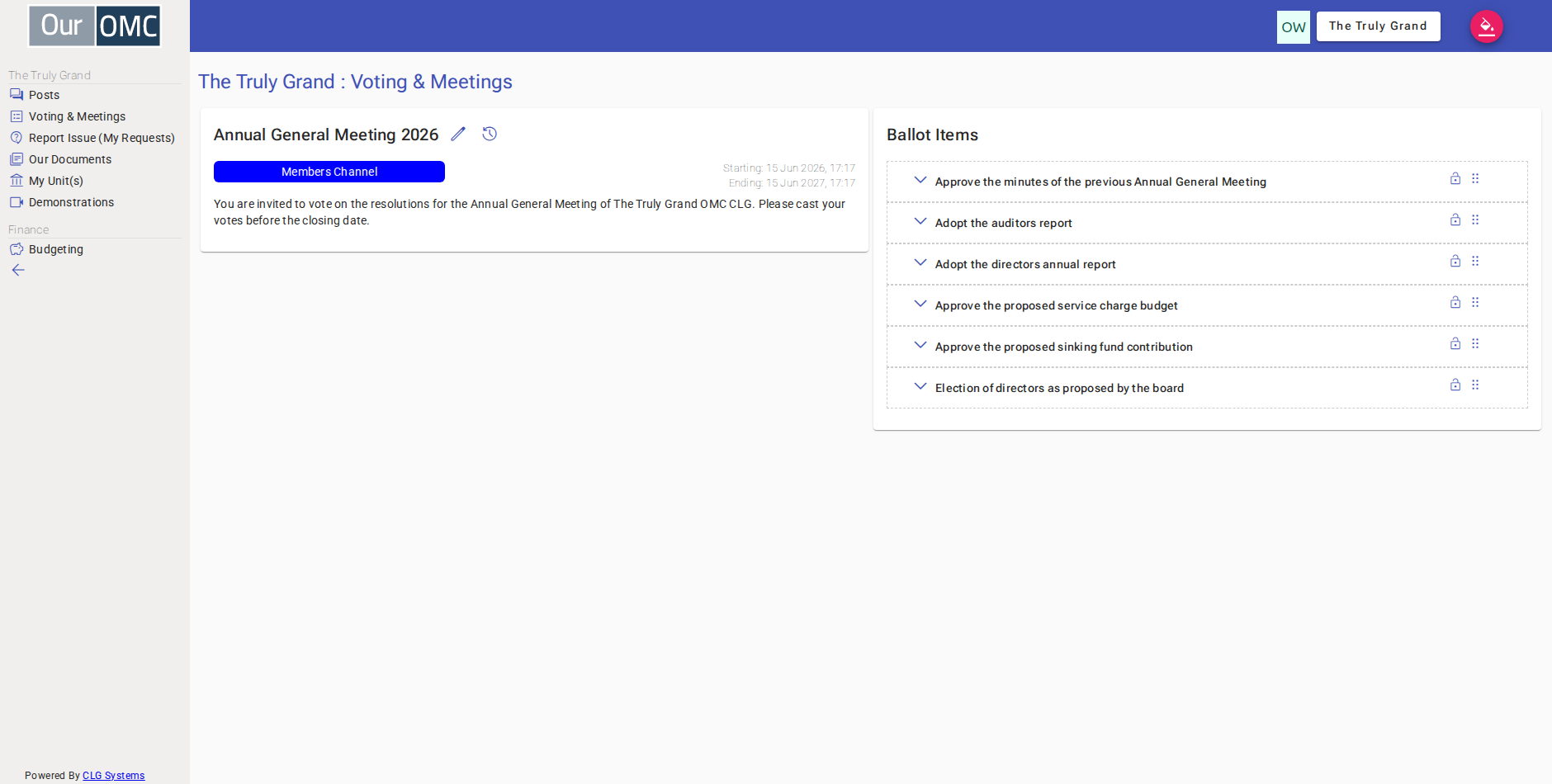
| Field | Type | Description |
|---|---|---|
| Title | text | The question or resolution being voted on. |
| Details | richText | The full text of the resolution or question, including any supporting background the OMC has provided. Read this carefully before casting your vote. |
| Meeting Start | dateTime | The date and time when voting opens — you can cast your vote any time from this point until the meeting ends. |
| Meeting End | dateTime | The date and time when voting closes — no votes can be accepted after this point. |
| Channel where this vote will happen | picklist | The channel this ballot is conducted in, which determines which members are eligible to vote (e.g. all members, or residents only). |
| Area | text | The area of the development this ballot relates to, if it applies to a specific zone rather than the whole OMC. |
| Core | text | The core or block within the development that this ballot applies to, where the OMC is divided into cores. |
| Type | text | The unit type this ballot is scoped to, if voting eligibility is limited to a particular type of unit. |
| Category | text | The unit category this ballot is scoped to, if voting eligibility is limited to a particular category of unit. |
Examples
Section titled “Examples”Casting a Vote
Section titled “Casting a Vote”Open an active ballot, review the question, and submit your vote before the closing time.
- Click [Voting & Meetings] on the main menu
- The owner can see both open ballots — clicking Residents Channel to see the residents' survey
- The residents' survey is shown — clicking Members Channel to switch to the AGM ballot
- The AGM ballot is shown in the Members Channel — click to view the questions and cast a vote
- The owner can see the ballot questions — click to expand a question and see the voting options
- The owner can see the voting options and selects "For"
- The owner's vote has been recorded — a confirmation message confirms the vote was cast successfully