
Standard Requests
A standard request is the reusable definition of a service request you raise again and again — an annual fire safety inspection, a quarterly lift service, a periodic CCTV health check. It holds the request’s title and description, its default priority and classification (topic and class), the role that should own it, an optional frequency, and a checklist of the action steps that need to be completed each time.
Creating a request from a standard request copies all of that onto the new request in one step, including the checklist, so every occurrence is handled the same way. Standard requests are also what recurring jobs are built from — a recurring job pairs a standard request with an OMC and a frequency so the request is prompted for automatically.
List View
Section titled “List View”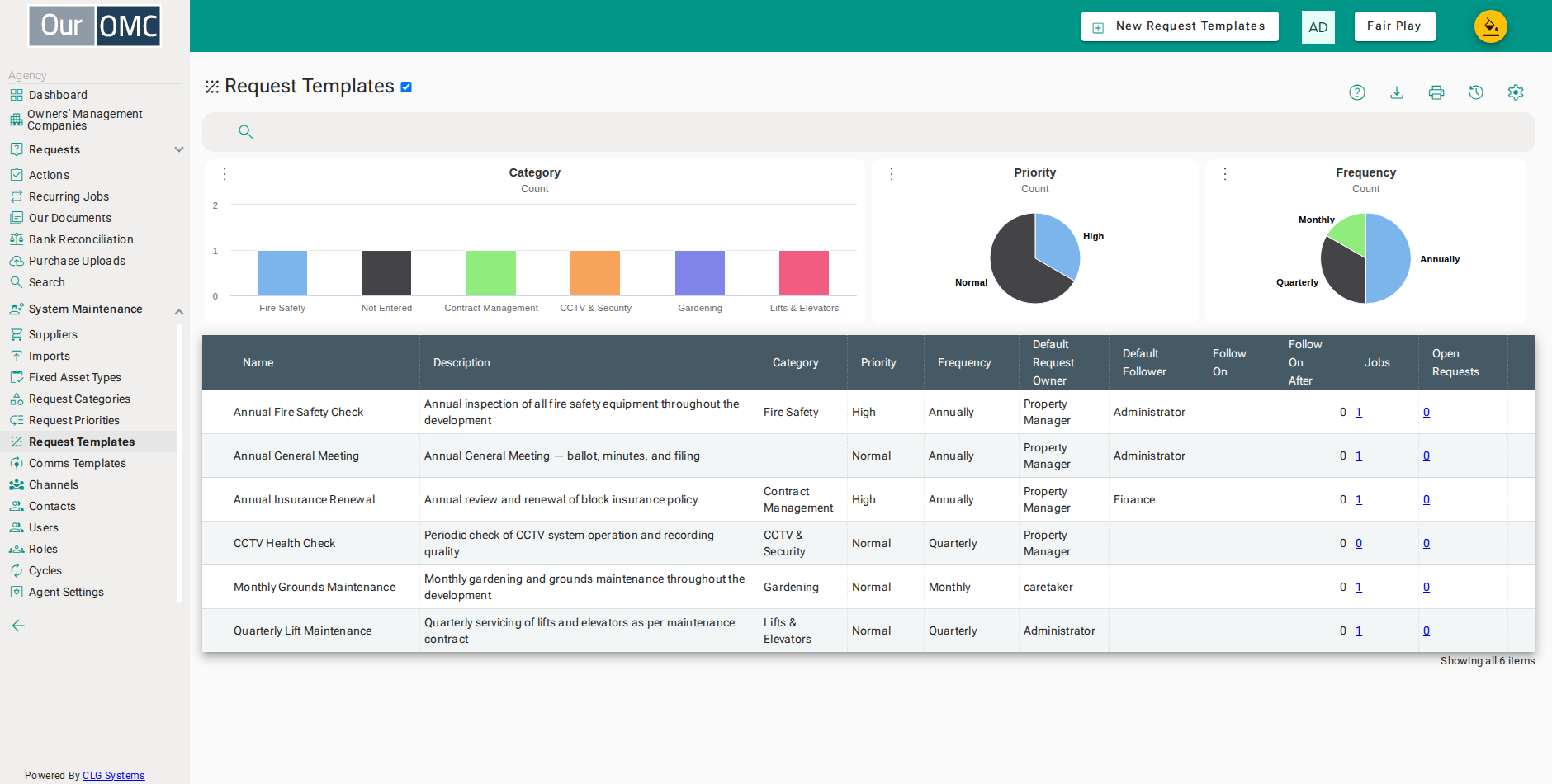
| Column | Type | Description |
|---|---|---|
| Name | text | The name of this standard request. |
| Description | longText | A description of what this standard request is used for. |
| Category | picklist | The request category this standard request belongs to. |
| Priority | picklist | The default priority assigned to requests created from this standard request. |
| Default Topic | picklist | The default topic stamped onto every request created from this standard request, so requests for a recurring job arrive already classified. Replaces the retiring Category field. |
| Default Class | picklist | The default class within the chosen topic, stamped onto requests created from this standard request. Must belong to the selected topic. |
| Frequency | picklist | The recurrence frequency if this standard request is used for recurring jobs. |
| Default Request Owner | picklist | The OMC team role responsible for owning requests created from this standard request. |
| Default Follower | picklist | The OMC team role that follows (receives notifications for) requests created from this standard request. |
| Follow On | picklist | A follow-on standard request — a request created from this standard request will automatically trigger a follow-on request. |
| Follow On After | number | The number of days after closing before the follow-on request is created. |
| Jobs | link | The number of recurring jobs currently using this standard request. |
| Open Requests | link | The number of open requests currently created from this standard request. |
Detail View
Section titled “Detail View”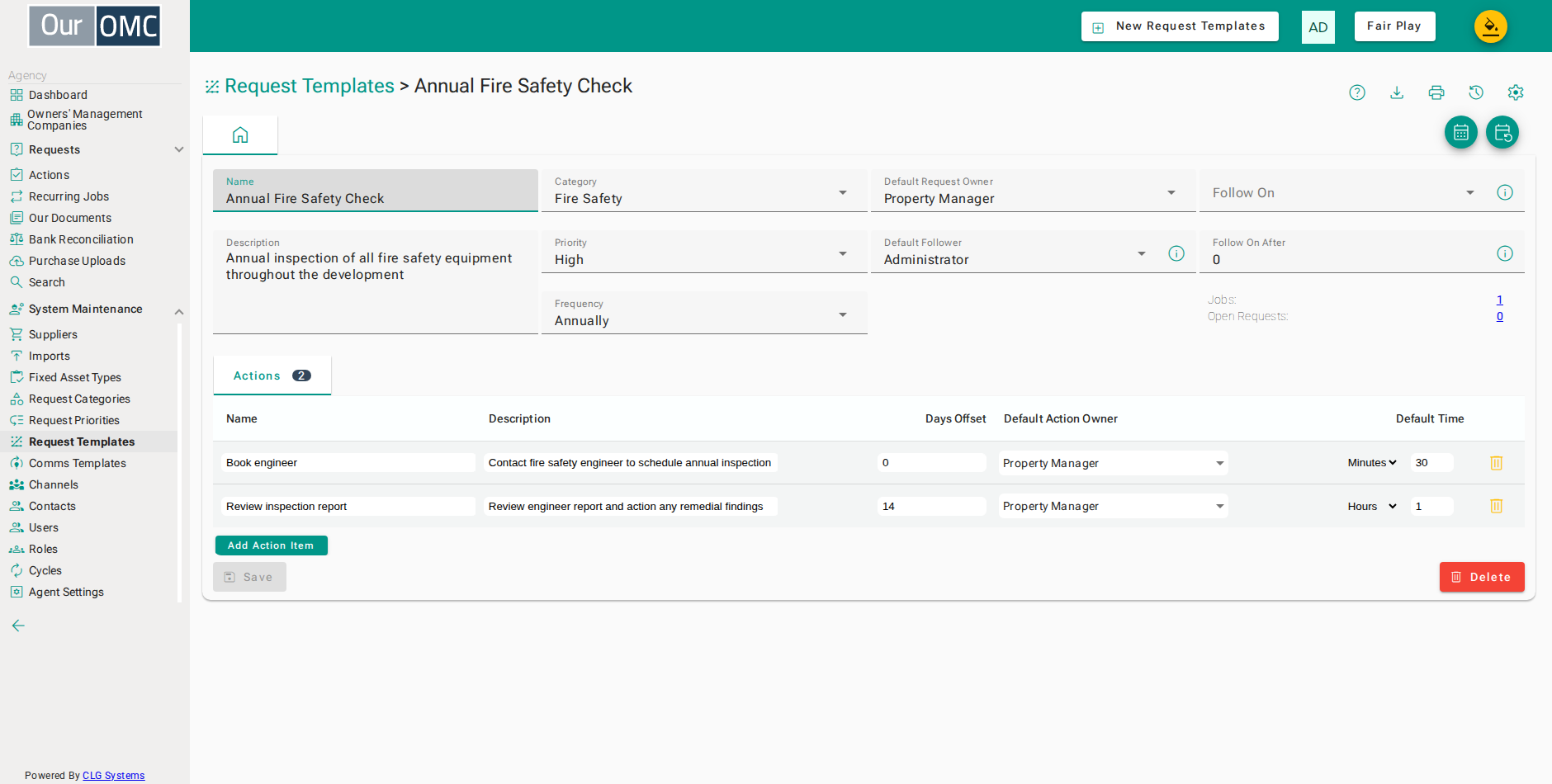
| Field | Type | Description |
|---|---|---|
| Name | text | The name of this standard request. |
| Description | longText | A description of what this standard request is used for. |
| Category | picklist | The request category this standard request belongs to. |
| Priority | picklist | The default priority assigned to requests created from this standard request. |
| Default Topic | picklist | The default topic stamped onto every request created from this standard request, so requests for a recurring job arrive already classified. Replaces the retiring Category field. |
| Default Class | picklist | The default class within the chosen topic, stamped onto requests created from this standard request. Must belong to the selected topic. |
| Frequency | picklist | The recurrence frequency if this standard request is used for recurring jobs. |
| Default Request Owner | picklist | The OMC team role responsible for owning requests created from this standard request. |
| Default Follower | picklist | The OMC team role that follows (receives notifications for) requests created from this standard request. |
| Follow On | picklist | A follow-on standard request — a request created from this standard request will automatically trigger a follow-on request. |
| Follow On After | number | The number of days after closing before the follow-on request is created. |
| Jobs | link | The number of recurring jobs currently using this standard request. |
| Open Requests | link | The number of open requests currently created from this standard request. |
| Actions | grid | Workflow action steps defined for requests created from this standard request. |
| Name | text | The name of this workflow action step. |
| Description | text | A description of what this action step involves. |
| Days Offset | number | The number of days after the request is created when this action is due. |
| Default Action Owner | picklist | The team role responsible for completing this action step. |
| Default Time | number | The expected time to complete this action step. |
| icon | Click to remove item from list |
The Default Topic and Default Class are stamped onto every request the standard request creates, so requests raised from one arrive already classified. Frequency is the natural interval for the job and is used to pre-fill the frequency when the standard request is turned into recurring jobs.
Action checklist
Section titled “Action checklist”Each row in the Actions grid is a step that will be added to the request as an action. The Days Offset is the number of days the step is due relative to the request’s planned date — negative for before (for example, “Book engineer” at −30 is due thirty days before the work), positive for after (“Receive report” at +3). When a request is created with a planned date, each step’s own planned date is worked out from the offset; a step whose date has already passed is pulled forward to today, and if that happens the person creating the request is told which steps were affected.
Available Actions
Section titled “Available Actions”| Action | Description |
|---|---|
Create Requests | Create a request for each planned job |
Add Recurring Jobs |
Creating a standard request
Section titled “Creating a standard request”Give the standard request a name and description, set the priority, topic, class and frequency, choose the owning role, then add one row to the Actions grid for each step in the checklist.
- Click [System Maintenance / Standard Requests] on the main menu
- Click on the new button
- Enter a name for the standard request
- Describe what the standard request is for
- Set the default priority for requests from this standard request
- Choose the default topic for requests from this standard request
- Choose the default class within that topic
- Set how often this job needs doing
- Choose which role owns requests from this standard request
- Click Add Action Item to add a checklist step
- Enter a name for the checklist step
- Set how many days before or after the planned date this step is due
- Choose which role owns this step
- Click Add Action Item to add a checklist step
- Enter a name for the checklist step
- Set how many days before or after the planned date this step is due
- Choose which role owns this step
- Click Add Action Item to add a checklist step
- Enter a name for the checklist step
- Set how many days before or after the planned date this step is due
- Choose which role owns this step
- Click Add Action Item to add a checklist step
- Enter a name for the checklist step
- Set how many days before or after the planned date this step is due
- Choose which role owns this step
- Click Add Action Item to add a checklist step
- Enter a name for the checklist step
- Set how many days before or after the planned date this step is due
- Choose which role owns this step
- Click Add Action Item to add a checklist step
- Enter a name for the checklist step
- Set how many days before or after the planned date this step is due
- Choose which role owns this step
- Click Save to create the standard request
- the standard request was saved
Setting up recurring jobs
Section titled “Setting up recurring jobs”The Setup Jobs action lists every OMC alongside this standard request. It pre-fills each row with the standard request’s frequency; set a next-occurrence date on the OMCs that need this job and save to create the recurring jobs in one go. This is the usual way recurring jobs are created.
- Click [System Maintenance / Standard Requests] on the main menu
- Open the standard request from the list
- Click Setup Jobs to schedule this standard request as a recurring job across your OMCs
- Confirm the frequency for this OMC
- Set when the next occurrence is first due
- Click Save to create the recurring jobs
- Confirm creating the recurring jobs
Using a standard request for a one-off request
Section titled “Using a standard request for a one-off request”From the Service Requests list, New → New Standard Request asks which OMC the request is for, then opens the new request stepper with an extra first step: choose the standard request to build from, and the date the work is planned for.
Everything else is filled in from the standard request as you step through — the title, description and priority, who the request belongs to, and the whole checklist of actions, each dated from the planned date by the number of days its step is set to. Change the planned date and the whole checklist moves with it. Change the standard request after the checklist is built and you are asked first, because it replaces the plan.
- Click [Requests] on the main menu
- Click on the new button to show options
- Select [patternNew Standard Request] from the new options menu
- Choose The Truly Grand as the OMC this request is for
- Choose the standard request to build the new request from
- Set the date the work is planned for - every checklist step is dated from it
- Click Next to review what the standard request has filled in
- Click Next to confirm who the request is for
- Click Next to see the plan the standard request lays out
Following one standard request with another
Section titled “Following one standard request with another”Some work requires a followup some time after it has been completed. Preparing the MUD Act replies for a sale is finished when the replies go to the solicitor — but the sale itself completes weeks later, and the OMC still has to find out who the new owner is and put them on the register. The second piece of work is real, it is predictable, and it is very easy to forget.
A standard request can name the one that comes after it. Follow On is that standard request, and Follow On After is how many days past the closing date the follow-up should be planned for. Nothing happens while the first request is open. When it is closed, the new request stepper opens by itself, already fixed to the follow-on standard request and dated the number of days out you asked for — so the only decision left is whether to raise it now.
Set the gap from the work, not from the calendar: a change-of-owner check might be 90 days out, a three-year insurance review 1095.
Usually, the Follow On is just left blank, when the standard request is complete, it’s complete.
Some users, for recurring jobs, will set the Follow On request to be itself. E.g. if you have a template for a monthly site visit, you can set it to be it’s own Follow On. If you do, when you mark this site visit complete, the system pops up and asks you to schedule the next one.
- Click [System Maintenance / Standard Requests] on the main menu
- Open the standard request that comes first
- Choose the standard request that should follow this one
- Set how many days after closing the follow on should be planned for
- Click Save - closing a request built from this one now offers the follow on
- the follow on was saved
The scenario below shows what that link does in practice — a MUD Replies request raised from its standard request, its checklist worked through, and the follow-up offered the moment it is closed.
- Click [Requests] on the main menu
- Click on the new button to show options
- Select [patternNew Standard Request] from the new options menu
- Choose The Truly Grand as the OMC the sale is in
- Choose the standard request for the replies being prepared
- Set the date the replies are due - every step is dated from it
- Click Next to review what the standard request has filled in
- Click Next to confirm who the request is for
- Click Next to see the plan the standard request lays out
- Click Create Case to raise the request
- Tick off each step of the plan as it is done - the request cannot be closed until they are
- Click Close once the replies have gone to the solicitor
- Confirm the topic the work fell under
- Confirm the class within that topic
- Click Close Request
- The follow on opens ready to raise, fixed to the standard request that follows this one
- planned 90 days out, as the standard request asked for